


I remember the first year I went fully self-employed. My invoices looked clean, but my expenses were chaos. I thought a spreadsheet would be enough. It wasn’t. I wanted a simple way to tag write-offs, separate business from personal, and know my quarterly tax number without late-night math. Friends kept telling me, “Just get QuickBooks.” I wanted cheaper and lighter. What pushed me to research hard was a painful April. I spent a weekend sorting receipts, only to overpay estimated taxes because I couldn’t trust my numbers. That was my line in the sand.
Here’s what I’ve learned editing and comparing tools for years: the best setups don’t try to do everything. They automate the boring parts, surface what matters, and stay affordable as you grow.
You don’t need an accountant-in-a-box to start. You need clean imports, fast categorization, mileage and receipt capture, and reports your CPA won’t roll their eyes at.
What is a Budget Expense Tracking App?
A budget expense-tracking app is software that connects to your bank and cards, categorizes spending, and helps you plan, monitor, and report on business expenses and taxes.
There’s a saying I live by: what gets measured gets managed. For solo business owners, that means clearer write-offs, better cash planning, and fewer tax surprises. It’s about control.
Think of it this way: guessing your quarterly taxes might cost an extra 10% due to missed deductions. Accurate tracking could reclaim hundreds or thousands each year with the same income.
At its core, this category serves freelancers, contractors, and small studios by importing transactions, tagging categories, attaching receipts and mileage, and producing reports your accountant can use to file.
People often pair these apps with invoicing tools, mileage trackers, business credit cards that export data, and secure cloud storage for receipts.
Not every app is equal on ease, bank feeds, or pricing, so it pays to choose carefully.
How to Choose the Best Budget Expense Tracking App
Picking an expense app can feel overwhelming. There are many options, each promising to save time and money. The fine print matters a lot.
I wrote this guide to help you find the right fit for your situation—freelancer, consultant, or tiny agency—without overspending or overbuilding.
Most lists you’ll see are written by the companies themselves or buried under sponsored rankings. I’m not sponsored by any platform on this list. This is a straight, honest overview based on research, testing, and reader feedback.
Here are some questions you should ask when looking for a tool:
- How generous is the free tier and what are the limits?
- Can I categorize, split, and reconcile transactions quickly?
- Will it scale if I add accounts, cards, or a bookkeeper?
- How does pricing rise as my usage, clients, or team grows?
- Does it include mileage, receipt capture, and basic reports?
- Are analytics clear—profit, burn, and tax estimates?
- How hard is it to export data and migrate later?
- Are bank feeds reliable, with strong data quality and uptime?
- Does it support 1099s, multi-currency, or sales tax if needed?
1. Wave
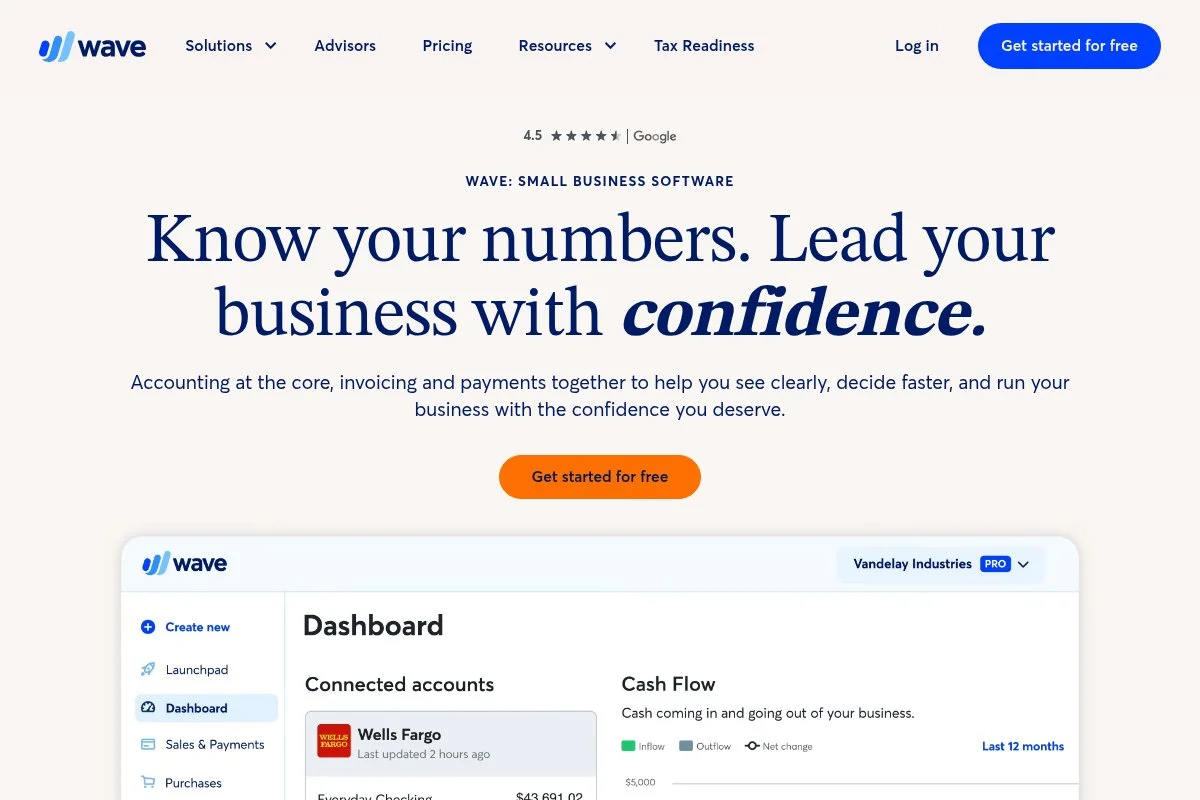
Wave is a free accounting platform designed for freelancers and tiny businesses that want essential bookkeeping without a monthly fee. It’s been around for years and is widely recognized among solo founders looking to keep costs low while staying organized.
Getting started is quick: connect bank and card accounts, set categories, and start reconciling. The dashboard shows income, expenses, and cash trends. Daily tasks include bulk categorization, attaching receipts, and running simple reports such as Profit & Loss and Balance Sheet.
Recent updates have focused on improved bank connections and a cleaner mobile experience, which helps with on-the-go receipt capture and reconciliation. Wave’s invoicing also got polish, making it easier to tie expenses back to clients.
On paid add-ons, Wave offers online payments and payroll. Payments let clients pay invoices by card or bank transfer for a processing fee. Payroll (in supported regions) adds contractor and employee pay with tax filings—features many free tools don’t touch.
I’ve used Wave for side projects because it nails the basics at zero cost. It’s not flashy, but the value is hard to beat if you just need clean books.
Support articles are solid, and the UI feels friendly. For many self-employed folks, it’s “enough” without dragging you into enterprise features you don’t need.
How Wave works and key features
Wave’s interface is straightforward. Connect accounts, categorize with custom rules, and reconcile monthly. There are no fancy editors—just simple forms and clear lists. You can create and customize invoices with your branding, accept payments, and track billable expenses per client.
Templates cover invoices and basic estimates. Advanced users can build custom categories, sales tax codes, and chart-of-accounts tweaks. Integrations include bank feeds, payments, and connections through tools like Zapier for workflows.
Reporting includes Profit & Loss, Balance Sheet, Sales Tax reports, and account balances. Automation shows up through bank rules, recurring invoices, and automatic payment matching. There’s a mobile app for managing receipts and invoices.
Support is handled through a help center and community; paid services, such as advisors, are available if you want hands-on help. Overall, it feels beginner-friendly while staying practical for everyday use.
Who Wave is for
Best for freelancers, coaches, creators, consultants, and solo eCommerce sellers who want simple, free expense tracking with basic invoicing. It shines for bank imports, quick categorization, and P&L reporting. If you need advanced inventory, job costing, or complex multi-entity accounting, you may outgrow it. No technical skill required.
Wave pricing
Wave’s pricing model keeps core accounting and invoicing free. You only pay for optional services like online payments and payroll.
- Accounting & Invoicing: $0/month, unlimited income/expense tracking, invoices, and basic reports
- Payments: Pay-as-you-go processing fees for card/ACH payments on invoices
- Payroll: Monthly fee plus per-employee/contractor charge in supported regions
Compared to others, Wave is the best free entry point. You’ll pay standard processing fees if you accept card payments. If you need payroll, check your state or country for availability. Annual billing isn’t needed here since the core is free.
Pros and cons of Wave
Pros
- Core accounting and expense tracking are free
- Easy bank connections with helpful categorization rules
- Solid invoicing tied to expenses
- No lock-in monthly fee for starters
Cons
- Advanced features like payroll cost extra
- Limited inventory and project accounting
- Support is lighter than paid platforms
If you want zero-cost books and straightforward expense tracking, Wave is my top free pick. If you need deeper features, look to QuickBooks or FreshBooks.
Wave reviews
G2: 4+/5 star rating (hundreds of reviews). Capterra: 4+/5 star rating (thousands of reviews). Reviews often praise value and ease, with some asking for richer reporting.
2. Zoho Expense
Zoho Expense is a dedicated expense and travel management app focused on receipts, mileage, and policy rules. It’s part of the larger Zoho suite, which has a strong track record serving small businesses worldwide.
You can start free for up to three users, which is great for solos and tiny teams. The mobile app makes it easy to snap receipts, auto-extract details, and log trips. Daily work centers on categorizing, approving (if you have a teammate), and exporting reports.
Recent updates have improved mileage tracking and OCR accuracy. Deeper integrations with Zoho Books and third-party accounting platforms make it easier to sync expenses directly into your ledger.
Paid tiers add features like per-diem rates, corporate cards, advanced approvals, and audit trails. If you grow into a micro-team, the policy engine is a step up from basic expense apps.
I don’t run my books in Zoho, but I’ve recommended Zoho Expense to teams that outgrew basic receipt apps. It’s lean, affordable, and scales well.
Documentation is thorough and the UI has improved over the years. If you ever move into Zoho’s broader ecosystem, the connections are already there.
How Zoho Expense works and key features
The interface is clean and mobile-first. Capture receipts with auto-scan, categorize, and submit or export. Templates help with reports and approval flows. Advanced users can set custom fields, multi-currency, and connect corporate cards.
Analytics cover spend by category, project, and time period. Automation includes mileage rate application, policy checks, and recurring expenses. Integrations with Zoho Books, QuickBooks Online, Xero, and Zapier keep data flowing.
Support includes help docs, email, and chat on paid plans. As one reader told me, “It took our team from inbox chaos to clean reports in a week.” — Freelance studio owner
Overall, it’s beginner-friendly but flexible enough for small teams that need approval steps and better audit trails.
Who Zoho Expense is for
Great for freelancers, consultants, micro-agencies, field service pros, and video/photo crews logging lots of receipts and mileage. It shines for mobile scanning and policy rules. If you want full accounting in one app, consider Wave or QuickBooks. No technical skill required.
Zoho Expense pricing
Zoho Expense uses a per-user model with a free tier for very small teams. Paid plans add approvals, policies, and deeper integrations.
- Free: $0/month, up to 3 users, receipt scan, mileage, basic reports
- Standard: From $3/user/month, advanced reports, per diem, policies
- Premium: From $5/user/month, multi-branch, budget controls, cards
- Enterprise: From $8/user/month, advanced controls and audit features
It’s one of the most affordable structured expense tools. Value is strong at the Free and Standard levels. Annual billing usually offers savings; check regional pricing and currency.
Pros and cons of Zoho Expense
Pros
- Free for up to 3 users
- Strong mobile receipt capture and mileage
- Approvals and policies for growing teams
- Good integrations with accounting tools
Cons
- Not a full accounting system
- UI depth can feel heavy if you’re truly solo
- Some features locked to higher tiers
If you want structured expense control on a budget, Zoho Expense is ideal. If you need full books in one place, look elsewhere.
Zoho Expense reviews
G2: 4.5+/5 rating (thousands of reviews). Capterra: 4.5+/5 rating (thousands of reviews). Users like the price-to-feature balance and mobile experience.
3. FreshBooks
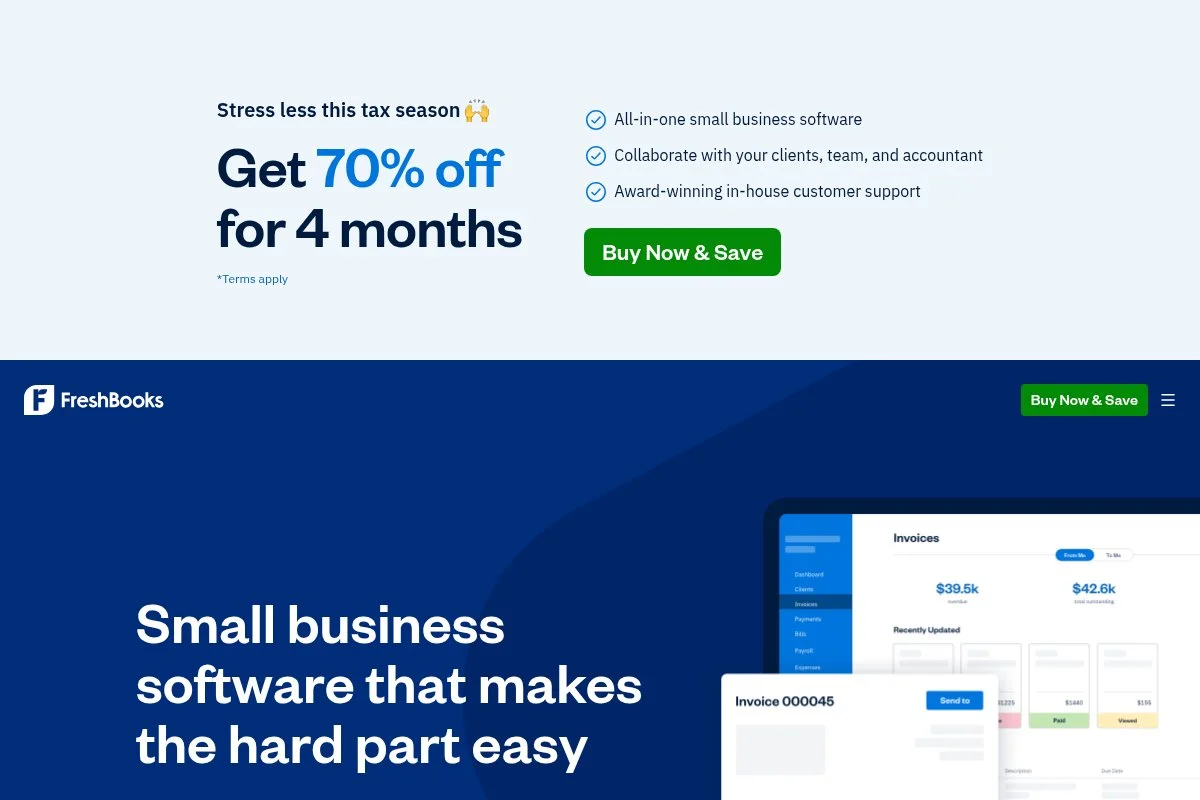
FreshBooks is an all-in-one invoicing and accounting platform designed for service businesses. It’s popular with designers, developers, and agencies that want polished invoicing plus reliable expense tracking.
You can start with the Lite plan, then grow into Plus or Premium. Setup is fast: connect bank feeds, customize your chart of accounts, and start tagging expenses. The daily workflow is smooth—categorize, attach receipts, and pull client or project-level reports.
FreshBooks has steadily improved time tracking, estimates, and mobile apps. The result is a tidy system where invoicing, expenses, and time roll into clear billing and reports.
Higher tiers add more clients, advanced reports, and automated late fees. You can also add team members and accountants, which helps when you scale past solo.
I’ve used FreshBooks for consulting sprints because the invoicing experience is excellent and the expense tools are reliable. It feels built for client work from the ground up.
The design is friendly, support is responsive, and the learning curve is gentle. If you send a lot of invoices, FreshBooks earns its keep.
How FreshBooks works and key features
FreshBooks centers on an intuitive web and mobile interface. Invoices are easy to brand and send. Expense tracking supports bank feeds, receipt attachments, and tax-friendly categories. You can tag expenses to clients or projects for cleaner billing.
Templates cover invoices, estimates, and proposals. Power users can tap integrations with payment processors, G Suite, and Zapier. Reporting covers P&L, sales tax, expense details, and AR aging.
Automation includes recurring invoices, late fees, payment reminders, and bank rules. Extra tools include time tracking, estimates, and light project management. Support is known for fast human help during business hours.
Overall, it’s beginner-friendly yet robust enough for small teams, with client work at the center.
Who FreshBooks is for
Great for freelancers, consultants, agencies, and creatives who send many invoices and need tidy expenses. It excels at client-facing workflows and time-to-invoice handoff. If you need deep inventory or complex accounting, QuickBooks might suit you better. Minimal technical skill required.
FreshBooks pricing
FreshBooks uses tiered pricing based on the number of billable clients and features. A free trial is available, and discounts are common for the first months.
- Lite: $19/month, up to 5 billable clients, invoices, estimates, expense tracking
- Plus: $33/month, up to 50 clients, recurring invoices, late fees, reports
- Premium: $60/month, unlimited clients, advanced reporting, more automation
- Select: Custom pricing, more automation and support for larger teams
Compared to peers, FreshBooks sits mid-range. It’s great value if invoicing is your core flow. Annual billing offers savings; watch for promos if you’re price-sensitive.
Pros and cons of FreshBooks
Pros
- Excellent invoicing and client workflows
- Solid expense tracking with bank rules
- Responsive human support
- Fair pricing for service businesses
Cons
- Client limits on lower tiers
- Less suited for complex inventory
- Can cost more than “free + add-ons” setups
If you bill clients frequently and want clean expense tracking, FreshBooks is a strong pick. If you’re product-heavy, consider QuickBooks instead.
FreshBooks reviews
G2: 4.5/5 rating (thousands of reviews). Capterra: 4.5/5 rating (thousands of reviews). Users highlight ease of use and great invoicing.
4. QuickBooks Online

QuickBooks Online is the accounting standard many accountants prefer. It’s built for accuracy and detailed reporting, which can save headaches at tax time.
Setup starts with Simple Start. Connect bank feeds, set your chart of accounts, and turn on rules for common categories. The interface is deeper than lighter tools, but the daily grind gets fast once rules are dialed in.
Recent improvements have centered on bank feed reliability, receipt capture, and better automation. QuickBooks continues to refine its reports and app integrations.
Higher tiers add bill pay, inventory tracking, and time tracking. If you expand to contractors or need advanced reporting, it’s ready for that jump.
I use QuickBooks for complex projects because it keeps my accountant happy and my end-of-year clean. It’s not the cheapest, but it’s thorough.
The app directory is extensive, support resources are deep, and most bookkeepers already know the system.
How QuickBooks Online works and key features
The web dashboard covers sales, expenses, banking, and reports. Bank rules, recurring transactions, and receipt capture speed up categorization. Templates help with invoices and estimates.
Advanced users can customize the chart of accounts, classes, and locations. Integrations span payments, payroll, and hundreds of third-party apps. Reporting is a strong suit, including P&L, cash flow, balance sheet, and detailed expense breakdowns.
Automation includes rules, scheduled invoices, and recurring expenses. Extra tools like payroll and time tracking make it a hub for finance ops. Support includes tutorials, community, and phone/chat on paid tiers.
Overall, it’s powerful and reliable, with a learning curve that pays off for detailed needs.
Who QuickBooks Online is for
Best for consultants, agencies, eCommerce sellers, and anyone who needs accountant-grade reports. Great when you have multiple accounts, classes, or payroll. If you only need basic expense tracking, Wave is cheaper and simpler. Some familiarity with accounting helps, but you can learn as you go.
QuickBooks Online pricing
QuickBooks uses tiered pricing by features and users. Trials and intro discounts are common.
- Simple Start: From $30/month, 1 user, basic income/expenses, invoices
- Essentials: Higher monthly price, 3 users, bills and time tracking
- Plus: Higher monthly price, 5 users, inventory and projects
- Advanced: Higher monthly price, more users and advanced automation
It’s pricier than free options but offers the depth many accountants expect. Annual savings vary. If you’re scaling, the jump from Simple Start to Plus is the key step.
Pros and cons of QuickBooks Online
Pros
- Best-in-class reporting for small business
- Reliable bank rules and receipt capture
- Huge ecosystem of add-ons
- CPA familiarity reduces friction
Cons
- Higher monthly cost than budget tools
- Learning curve for new users
- Feature depth can feel heavy for solos
If you need accountant-grade structure, QuickBooks is worth it. If not, start with Wave or FreshBooks to save money.
QuickBooks Online reviews
G2: 4.0+/5 rating (thousands of reviews). Capterra: 4.0+/5 rating (thousands of reviews). Reviewers value features but mention the learning curve.
5. Tiller
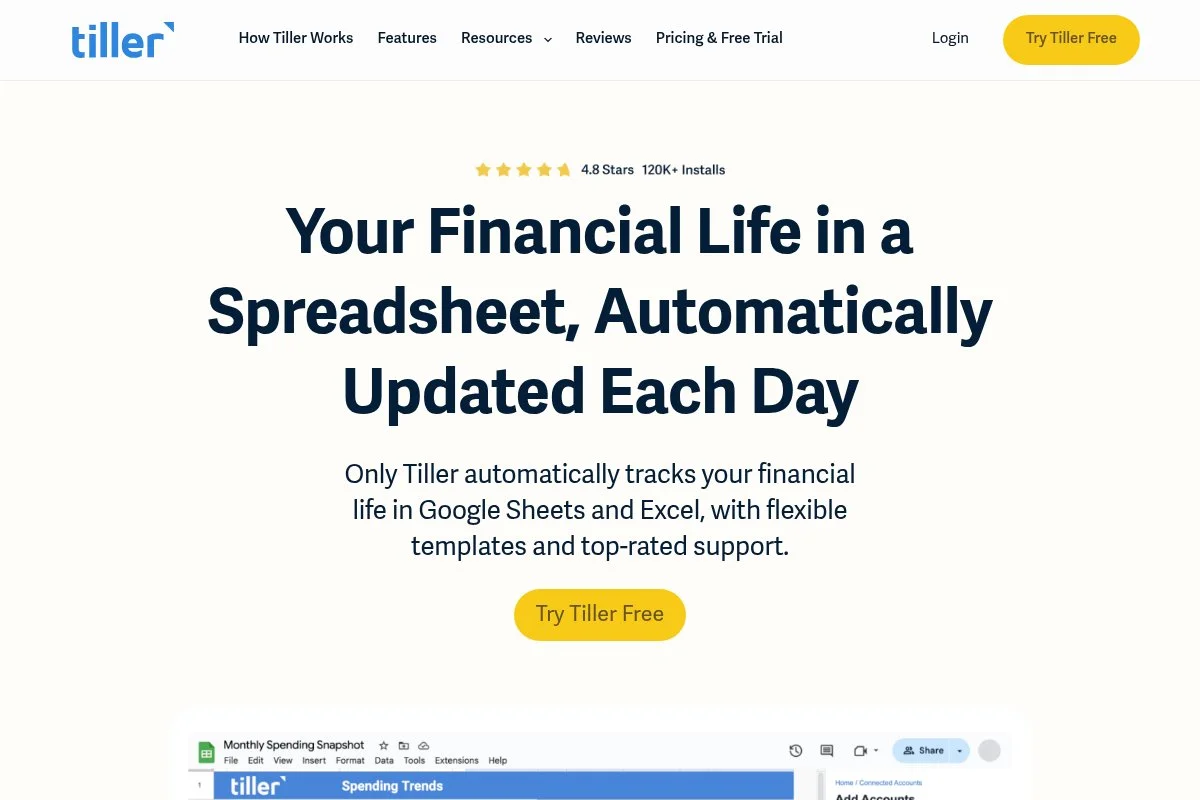
Tiller connects your bank data to Google Sheets and Microsoft Excel so you can build your own expense system with live feeds. It’s loved by spreadsheet fans who want total control without manual CSV imports.
Setup involves linking accounts and choosing a template. From there, transactions flow into your sheet daily. You categorize in the spreadsheet, and dashboards update automatically.
Tiller has improved templates and bank coverage over time, making it easier to get started fast. The community also shares sheets for profit tracking, taxes, and net worth.
Advanced users can customize formulas, pivot tables, and add-ons. If you love spreadsheets, this is where you can tailor expense tracking to your business model.
I use Tiller for personal and side budgets because it gives me full control. It’s the best middle ground between manual spreadsheets and full accounting apps.
Support is friendly, templates are helpful, and the learning curve is manageable if you’re comfortable with Sheets or Excel.
How Tiller works and key features
Tiller’s “interface” is your spreadsheet. The Tiller Money Feeds add-on handles secure bank sync. Templates include Foundation, Monthly/Annual Budgets, and business-focused sheets. You can customize everything—categories, rules, and dashboards.
Advanced users can add scripts, use the Community Solutions add-on, and integrate with workflow tools. Analytics depend on your templates—cash flow, category trends, income vs. expense, and more.
Automation covers daily feeds, auto-categorization rules, and scheduled email summaries. Support includes a knowledge base, email, and an active community forum. The overall experience is powerful for spreadsheet users and still approachable for beginners willing to learn.
Who Tiller is for
Great for freelancers, real estate solopreneurs, consultants, and creators who prefer Sheets/Excel and want custom dashboards. It excels for detailed budgets and category control. If you dislike spreadsheets or need invoicing, choose another app. Some comfort with spreadsheets helps.
Tiller pricing
Tiller uses a flat annual subscription for unlimited spreadsheets and linked accounts. There’s a trial to test the feeds and templates.
- Annual Plan: $79/year, unlimited spreadsheets, daily bank feeds, templates
Compared with monthly accounting apps, Tiller is cost-effective if you already use Sheets or Excel. No tiers to outgrow. If you need invoicing and AP/AR, you’ll pair it with other tools.
Pros and cons of Tiller
Pros
- Spreadsheet control with live bank feeds
- One flat annual price
- Active community and templates
- Great for custom budgets and reports
Cons
- No native invoicing or full accounting
- Requires comfort with Sheets/Excel
- Setup takes longer than plug-and-play apps
If you love spreadsheets, Tiller is fantastic value. If you want a guided app, FreshBooks or Wave will feel easier.
Tiller reviews
G2 and Capterra coverage is lighter; community and subreddit feedback are strong. Users praise control and bank sync reliability.
6. YNAB
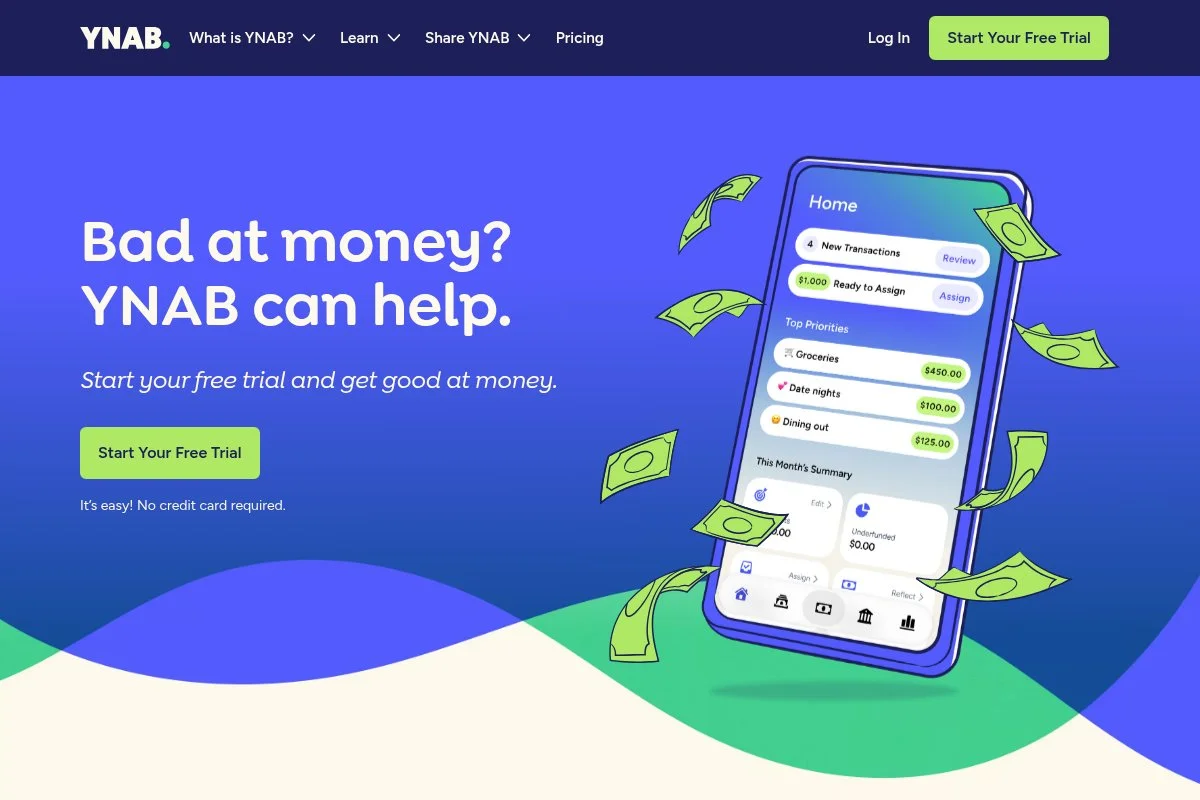
YNAB (You Need A Budget) is a rule-based budgeting app that helps you assign every dollar a job. While it’s consumer-focused, many solo owners use it to manage owner pay and monthly business budgets.
Getting started is simple: link accounts or enter transactions, create categories, and give each dollar a purpose. The daily habit of reconciling forces clarity on spending and cash flow.
Over the years, YNAB has improved bank connections, mobile apps, and goal features. It remains one of the best tools for cash clarity, even if it’s not full accounting.
Advanced users can create multiple budgets (e.g., personal and business) and use targets for taxes, software renewals, and equipment. The method helps reduce stress during slow months.
I’ve used YNAB to keep owner pay steady and build a tax buffer. Paired with a lightweight accounting tool, it’s a strong combo.
The community and education materials are excellent. If you stick with the method, cash decision-making gets easier fast.
How YNAB works and key features
YNAB’s interface focuses on your budget screen. You assign funds to categories and reconcile transactions. Templates come from saved targets and category structures. Power users can set detailed goals and scheduled transactions.
Advanced capabilities include API access, file imports, and third-party integrations. Analytics center on age of money, category trends, and progress to targets. Automation includes bank feeds, scheduled transactions, and goal tracking.
Support is email-based, with in-depth educational resources and workshops. “It finally made my variable income feel stable,” a reader told me after two months with YNAB.
Overall, it’s beginner-friendly for budgeting and pairs well with a separate accounting tool if you need formal books.
Who YNAB is for
Great for freelancers, creators, coaches, and independent contractors with variable income. It excels at smoothing owner pay and tax savings. If you need invoices and accountant-ready reports, combine it with Wave or QuickBooks. No technical skill needed.
YNAB pricing
YNAB uses subscription pricing with monthly or annual options. There’s a trial to learn the method before committing.
- Monthly: $14.99/month, full access, unlimited accounts and categories
- Annual: Discounted vs. monthly, full access, unlimited budgets
It’s not the cheapest budget app, but the method can save multiples of the fee by preventing overspending. If you need accounting, you’ll still pair it with another tool.
Pros and cons of YNAB
Pros
- Best-in-class budgeting method
- Great for variable income planning
- Strong education and community
Cons
- Not a full accounting system
- Subscription adds to stack cost
- Learning curve for the method
If you want budgeting discipline for your solo business, YNAB is excellent. If you need expense tracking plus invoicing, consider FreshBooks or Wave.
YNAB reviews
G2 and Capterra: 4.5+/5 average ratings across many reviews. Users love the method and the clarity it brings to cash flow.
7. Expensify
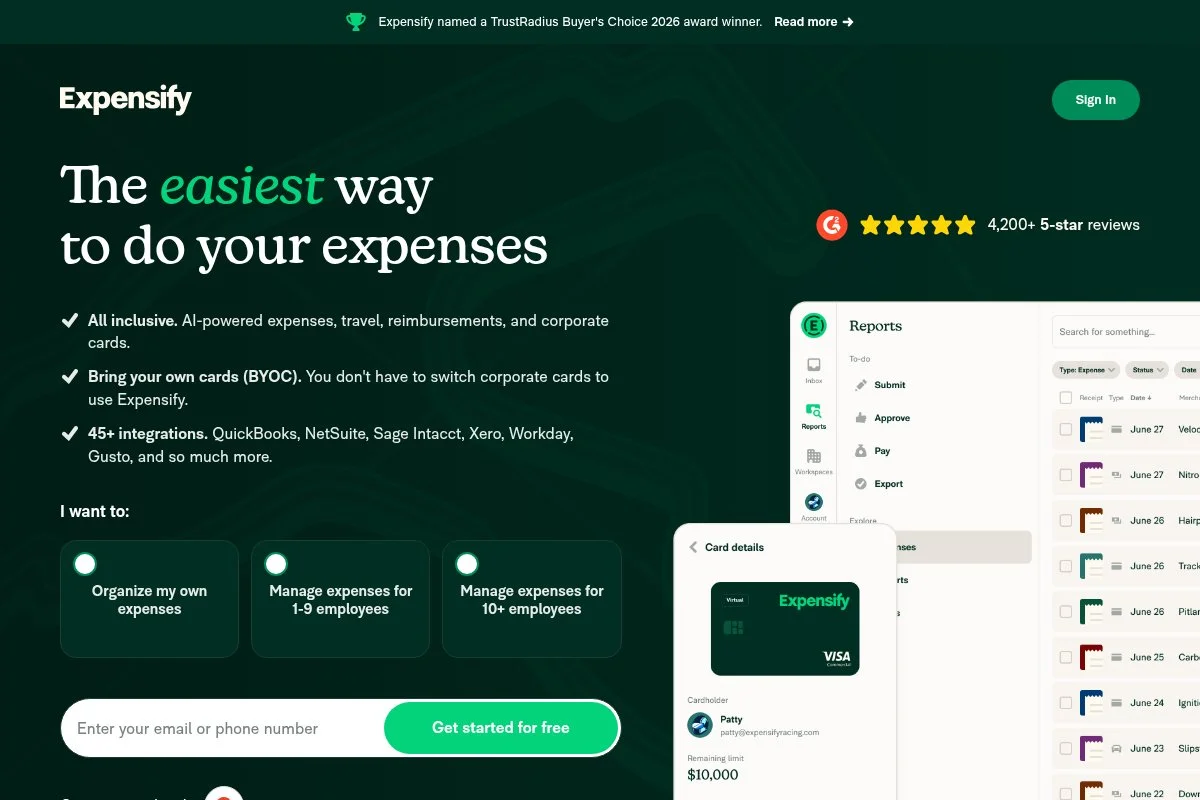
Expensify is a well-known expense app focused on receipt scanning, approvals, and reimbursements. It’s long served teams, but solos use it for fast captures and tidy reports.
You can start free if you use the Expensify Card. Otherwise, choose a paid plan. The mobile app’s SmartScan extracts details in seconds. Daily life is scanning, categorizing, and exporting to accounting.
Expensify has continued to invest in card programs and integrations, which makes life easier if you grow and add teammates or corporate cards.
Paid tiers unlock more controls, approvals, and accounting sync options. If you bill expenses back to clients, the reporting is helpful.
I don’t use Expensify as my main tool, but it’s my go-to recommendation for heavy receipt scanning. It nails that job.
Knowledge base articles are clear, and the app is fast. If your workflow is “snap and move on,” it fits well.
How Expensify works and key features
Expensify revolves around its mobile app and SmartScan. You snap a receipt, it pulls the merchant, date, and amount, then suggests a category. Templates help with reports and exports.
Advanced options include custom categories, rules, and multi-currency. Analytics report spend by category, merchant, and policy. Automation includes auto-categorization, approvals, and scheduled exports.
Integrations cover QuickBooks Online, Xero, and more. Support includes help docs and email/chat for paid users. The overall experience is quick and focused on capturing and exporting clean data.
Who Expensify is for
Good for contractors, field teams, creators on the road, and anyone with lots of receipts. It excels at scanning speed and approvals. If you need full accounting or invoicing, pair it with Wave or QuickBooks. No technical skill needed.
Expensify pricing
Expensify pricing centers on whether you use the Expensify Card and how many users you have.
- Free with Expensify Card: $0/month, SmartScan, basic approvals, exports
- Collect: From $10/user/month without card, expense reporting and sync
- Control: Higher per-user price, advanced approvals and policies
It’s cost-effective if you’re okay with the card program. Without it, per-user pricing can add up. Annual commitments may lower cost—check for current offers.
Pros and cons of Expensify
Pros
- Fast, accurate receipt scanning
- Good approvals and export options
- Free option with Expensify Card
Cons
- Per-user pricing can rise as you add people
- Not a full accounting platform
- Card program may not fit every workflow
If scanning speed is your pain point, Expensify is great. If you need full books, combine it with an accounting app.
Expensify reviews
G2: 4+/5 rating (thousands of reviews). Capterra: 4+/5 rating (thousands of reviews). Reviewers praise scanning and mention pricing tradeoffs.
What is the Best Budget Expense Tracking App Right Now?
My top picks today are Wave, Zoho Expense, and FreshBooks. They cover different needs while staying friendly on price and time.
Wave is my #1 because I personally use it for small projects and coaching work. This isn’t sponsored. I found it while hunting for a free, reliable tool that could still spit out clean P&L reports. The bank rules, receipt attachments, and zero monthly fee won me over fast.
On value, Wave is hard to beat. Free core accounting means your costs are payment fees only if you accept cards, plus optional payroll. Compare that to $19–$30 per month elsewhere, and you can save a few hundred a year—money better kept in your tax bucket or software budget.
Zoho Expense is my #2 choice because it’s the best low-cost way to get strong receipt capture, mileage tracking, and approvals. If you plan to add a contractor or two, the policy engine scales without breaking the bank. Recent improvements to integrations make exporting to your ledger smoother.
Its unique strength is structure. If your team submits expenses and you need clean approvals, Zoho Expense keeps everything organized. If I were growing a small studio with light travel, I’d pick it first.
FreshBooks is #3 if your business revolves around client invoices and time tracking. The invoicing experience is top-tier and integrates well with expenses. There’s a free trial and frequent discounts, so it’s an easy lift if you value polished client workflows.
I also use Tiller for personal and side budgets because spreadsheets help me see patterns. Different tools can live together just fine—one for budgets, another for books.
Choosing between these is genuinely tough. I stayed with Wave because the free core fits my lean setup, and I don’t want to pay monthly for features I rarely use. If I grew headcount or travel, I’d switch to Zoho Expense and pair it with my ledger.
I hope this helped you land on a tool that feels right for your work and wallet. Clean books, fewer surprises—that’s the goal.
Frequently Asked Questions
Q: What’s the simplest free way to track business expenses?
For most solo pros, Wave is the easiest free option to start with. Connect your bank, set basic categories, and attach receipts. If you need mileage and approvals, try Zoho Expense’s free tier.
Q: Do I need both a budgeting app and an accounting app?
Not always. If you only need taxes and reports, an accounting app is enough. If cash planning is a pain, add a budgeting tool like YNAB or Tiller alongside your ledger.
Q: How do these apps help with quarterly taxes?
Accurate categorization and reports show your deductible expenses, which lowers taxable income. Many tools also let you tag and track a “tax savings” category so you stash cash monthly.
Q: What if my bank feeds break or miss transactions?
It happens. Reconnect the feed, import a CSV for the gap, and set a reminder to reconcile weekly. Using bank rules and consistent categories reduces fixes later.
Photo by Rob Hampson: Unsplash


