


A few years ago, I needed a portfolio that made clients say yes faster. I was juggling pitches, redlines, and invoices. My site needed to work while I slept. I wasn’t trying to impress other freelancers. I wanted booked calls and paid projects. That focus shaped how I looked at builders and templates. My team and I review tools for self‑employed pros every week. We don’t test everything first-hand, but we try many of them. Pricing pages promise a lot. The actual setup tells the truth.
What surprised me most? The best portfolios I studied from designers, writers, and developers were simple. Clear headline, proof, case studies, contact. No fluff. No slow scripts. That’s the trap: it’s easy to overpay for features you won’t use. You don’t need fancy animations to land good work. You need speed, structure, and trust signals.
Comparison of 5 Top Freelance Portfolio Builders and Templates in 2026 With Pricing and Recommended Use Cases
What Is a Freelance Portfolio Builder?
A freelance portfolio builder is software that helps you launch a professional website fast, using ready-made templates and simple editors. Its job is to showcase work and win clients. There’s a saying I repeat often: what gets shown gets sold. A focused portfolio gives you control, proof, and an easy path to contact, without waiting on social algorithms.
Think of it like this: one strong case study on your site can outperform dozens of Instagram posts. A clear headline, results, and a contact button often beat 10,000 views elsewhere. At its core, a portfolio builder lets independent creators upload projects, add context and outcomes, organize pages and galleries, connect a custom domain, and collect leads into an inbox or CRM.
People often pair builders with tools like Canva or Figma for visuals, Google Analytics or built-in analytics for tracking, Calendly for booking, and Stripe or PayPal for deposits. Not every builder balances speed, price, and control the same way, so it pays to choose with care.
How to Choose the Best Freelance Portfolio Builder
Picking a portfolio builder can feel overwhelming. There are countless plans, feature charts, and fine print. The wrong pick can slow you down or cost more than it should.
I wrote this guide to help you find a tool that fits your work, budget, and timeline. If you need clients next week, the setup path matters as much as features.
Most guides you’ll find are written by vendors or by media sites with paid placements. I am not sponsored by any platform on this list. This is a straight, honest overview based on my experience and research for self‑employed readers.
Here are some questions you should ask when looking for a portfolio builder:
- How generous is the free tier or trial, and what’s locked?
- How quickly can I build core pages: Home, About, Work, Contact?
- Will it scale if I add blogs, case studies, or hundreds of images?
- What happens to pricing as traffic, pages, or forms increase?
- Does it support the features I need: galleries, video, forms, and SEO?
- What analytics are built in, and can I add Google Analytics?
- How hard is it to export or migrate if I switch later?
- Is uptime solid, and does it include SSL and backups?
- Any technical needs, such as custom code, CMS, or client logins?
5 Top Freelance Portfolio Builders in 2026
Here are my top picks for the best freelance portfolio builders:
- Pixpa
- Carrd
- Squarespace
- Webflow
- Cargo
Let’s see which one is right for you.
1. Pixpa

Pixpa is an all‑in‑one website builder tailored for creatives like photographers, designers, artists, and freelancers who need galleries and client proofing. It has been around for years and is well known in creative circles for its built‑in tools and fair pricing. You can start with a 15‑day free trial, and paid plans begin at a low monthly rate when billed annually. Setup is quick. Pick a template, add projects, and customize styles with a simple visual editor. Daily tasks feel natural: uploading images, writing case studies, managing galleries, and collecting leads with forms.
Recent updates have focused on performance, mobile layouts, and streamlined client galleries. The gallery proofing workflow has improved, which helps photographers and designers get approvals faster without extra tools. Higher‑tier plans unlock client galleries with downloads, e‑commerce features, and more storage. You also get features like password‑protected projects, integrated blogging, and SEO controls. These are useful if you plan to sell prints, digital files, or services from the same site.
I like Pixpa for its speed-to-value. It gets a working portfolio live fast without add‑ons. If you need heavy custom code or advanced CMS logic, other tools may stretch further. Another plus: the templates balance clean design and client‑friendly navigation. Support articles are straightforward, and the onboarding tips keep you moving.
How Pixpa Works and Key Features
Pixpa uses a familiar visual editor with side panels for pages, design, and settings. Templates are image‑forward, and you can swap fonts, colors, and blocks without touching code. For advanced tweaks, custom CSS and code embeds are available. You can manage galleries, albums, and client proofing from one dashboard. The blogging tool supports categories, SEO fields, and scheduling. Analytics include traffic, sources, top pages, and gallery activity. You can easily add Google Analytics and Search Console.
Automation is light but useful: client galleries can auto‑notify, and store orders route to email. Built‑in forms handle inquiries, bookings, and file uploads. Extra tools include e‑commerce for services and products, discount codes, and integrated SSL. Support is available through guides and email. I’ve found responses clear and practical. A photographer I spoke with said, “Pixpa cut my proofing time in half,” which matches my experience helping clients set it up.
Overall, Pixpa is beginner‑friendly but still flexible enough for growing creative businesses.
Who Pixpa Is For
Pixpa fits photographers, brand designers, illustrators, videographers, stylists, and content creators who want galleries, case studies, and a store in one place. It shines for client proofing, service sales, and simple blogging. If you need complex CMS structures, headless builds, or fine‑grained animations, Webflow might be better. No coding is required to launch.
Pixpa Pricing
Pixpa uses simple, tiered pricing based on features and storage. There’s a 15‑day free trial, and paid plans start at a low annual price.
- Light: From around $5/month (annual), portfolio basics, SSL, and standard templates.
- Personal/Creator: Adds blogging, more pages, and storage, and priority support.
- Professional: Client galleries with downloads and proofing, advanced SEO controls.
- Advanced/Business: Full store features, more bandwidth, and expanded storage.
Value is strong compared with general website builders because client galleries and store tools are included. Paying annually reduces the monthly rate. If you plan to host many large image sets, consider stepping up a tier for storage headroom.
Pixpa Pros and Cons
- Pros: Very affordable entry plan; built‑in client galleries; clean, image‑first templates; straightforward SEO and blogging.
- Pros: Good onboarding and support articles; easy Google Analytics setup.
- Cons: Less control for complex layouts than Webflow; no permanent free plan.
- Cons: App integrations are lighter than larger ecosystems.
If you want a fast, affordable, creative portfolio with proofing and sales, Pixpa is a strong choice. If you need deep custom logic or animation, look to Webflow.
Pixpa Reviews
Third‑party reviews for Pixpa are available on several software directories, though the volume is modest compared with larger builders. Ratings are generally positive among creative users. I suggest checking current listings on major review sites for the latest feedback.
2. Carrd
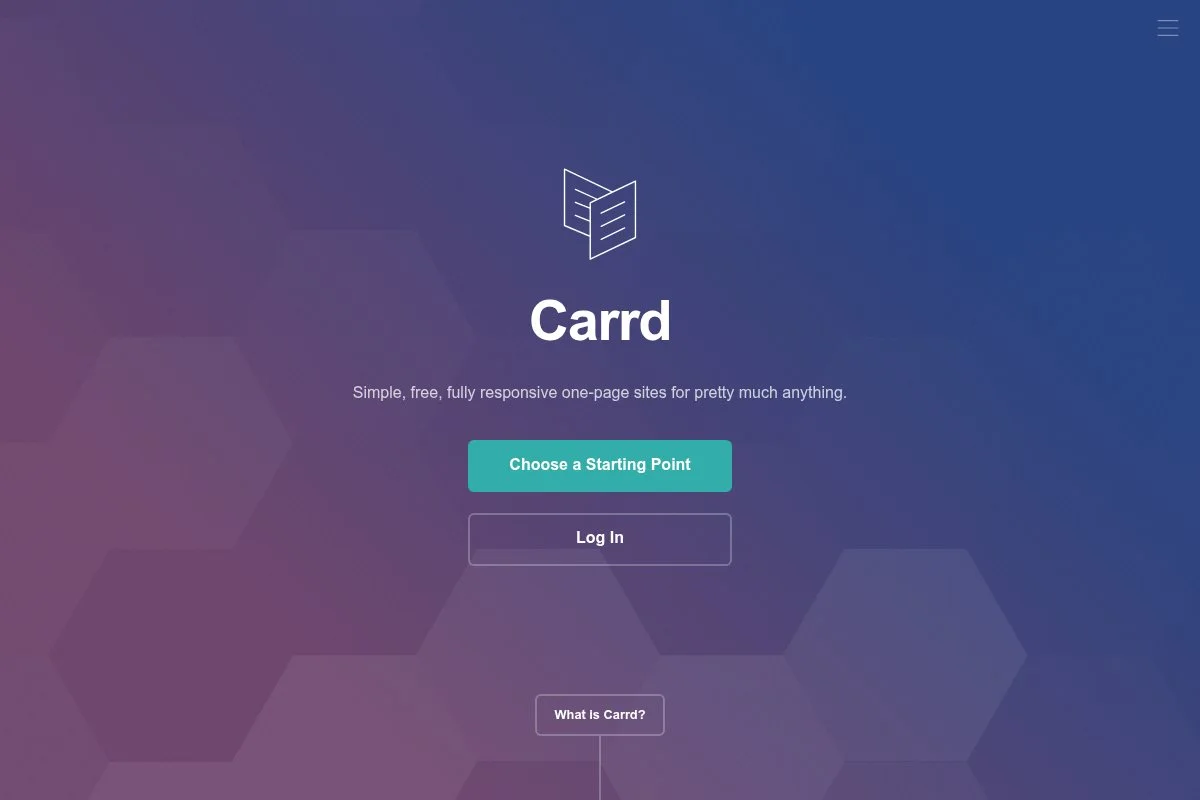
Carrd is a lightweight builder for one‑page sites. It’s built by a small, focused team known for fast performance and honest pricing. Many indie makers and freelancers use it for landing pages and quick portfolios. There’s a free plan, and Pro starts at an ultra‑low yearly price. Getting started takes minutes. Pick a template, drop in sections, and wire up a form. The editor is simple, with drag‑and‑drop blocks, responsive settings, and custom domains on Pro.
Recent template refreshes improved accessibility, spacing, and mobile polish. Form options and widgets have expanded, too, which helps with lead capture and embedding calendars or videos. Pro tiers unlock custom domains, forms with autoresponders, embeds, Google Analytics, and branding removal. You can also add custom code, which makes Carrd more flexible than it looks.
I use Carrd for quick tests and minimalist one‑pagers. It’s perfect for “I need something live today” moments. If you want a deep blog or complex CMS, plan on pairing it with other tools. The best part is speed. Pages load fast, and the site editor stays out of your way. That leads to more publishing and less tinkering.
How Carrd Works and Key Features
Carrd’s interface is a clean WYSIWYG editor with draggable elements, section backgrounds, and fine‑tuned spacing. Templates are minimal, with strong typography by default. You can customize colors, fonts, and form fields. Pro allows custom CSS and JS, plus embeds from Calendly, Gumroad, and more.
Analytics connect through Google Analytics on Pro. Forms can send submissions to email or services via integrations. Automation is basic but effective. Use form autoresponders and embed tools that handle the rest. Support is handled via docs and email, which I’ve found reliable for a lean product.
Carrd also supports multiple sites on Pro, which is great for freelancers running landing pages for campaigns. Overall, it’s the most beginner‑friendly option here.
Who Carrd Is For
Carrd fits copywriters, consultants, developers, and designers who want a fast one‑page portfolio, resume, or lead funnel. It’s great for link‑in‑bio pages and simple service pages. If you need multi‑page navigation, heavy blogging, or complex CMS fields, consider Squarespace or Webflow. Zero coding is needed, with optional code for power users.
Carrd Pricing
Carrd’s pricing is flat and refreshingly low. There’s a free plan with Carrd branding. Pro plans are billed yearly and vary by features and site count.
- Free: Basic one‑page sites with Carrd branding and templates.
- Pro Lite: $9/year, custom domains, branding removal, basic forms.
- Pro Standard: $19/year, advanced forms, widgets, Google Analytics, more sites.
- Pro Plus: $49/year, more sites, higher limits, advanced embeds, and features.
Against any builder, Carrd is the cheapest way to get a professional one‑pager live. The Standard tier is the sweet spot for most freelancers. Prices are already low, and you’ll sometimes see seasonal discounts.
Carrd Pros and Cons
- Pros: Extremely affordable; launches in minutes; fast loading; custom code support on Pro.
- Pros: Multiple sites included with Pro; simple, no‑nonsense editor.
- Cons: One‑page focus; limited native blogging and CMS; lighter analytics.
- Cons: Smaller template library than big builders.
If you want a lean, high‑conversion one‑pager, Carrd is hard to beat. For content‑heavy sites, look to Squarespace or Webflow.
Carrd Reviews
Carrd has strong word‑of‑mouth among indie creators. Formal reviews on major directories are lighter than large builders. Check community forums and social threads for real‑world setups and feedback.
3. Squarespace

Squarespace is a polished, all‑in‑one website builder with templates that look good out of the box. It’s a long‑standing platform with strong brand recognition and a steady pace of improvements. You can start on a free trial, and paid plans begin at a mid‑range monthly rate when billed annually. The drag‑and‑drop editor is user-friendly, and the template designs are among the best for visual portfolios. Day to day, you’ll manage pages, galleries, blog posts, and forms with consistent controls.
Recent updates have focused on performance, sections, fluid engine layout controls, and a more flexible design system. Store and scheduling tools have also become tighter, which helps service businesses bundle everything in one place.
Higher plans add e‑commerce, advanced analytics, promotional pop‑ups, and custom code injection. You also get more control over checkout and product variants, which helps if you sell both services and digital products. I recommend Squarespace when someone needs a professional look, fast setup, and minimal upkeep later. If you want granular layout control or a custom CMS, Webflow has the edge. Customer support is strong, with deep guides and templates that age well. The result is a site that feels “done” sooner.
How Squarespace Works and Key Features
Squarespace uses a visual editor with sections and content blocks. Templates are high quality, and you can customize fonts, colors, spacing, and page structure without code. Code injection is available on higher plans for custom CSS and scripts. Built‑in features cover galleries, video, blogging, forms, and basic SEO. Analytics track traffic, sources, conversions, and popular content. You can also add Google Analytics. Scheduling, email campaigns, and e‑commerce are integrated, which keeps your stack simple.
Support includes guides, webinars, and chat. A designer I trust said, “I shipped a client portfolio in two days, and it still looks custom,” which matches my own experience helping teams launch. Overall, it balances ease and power for non‑technical users who still want a refined look.
Who Squarespace Is For
Squarespace suits brand designers, photographers, consultants, copywriters, and studios that want polished templates and low maintenance. It excels for galleries, case studies, light blogs, and service booking. If you need heavy CMS relationships or advanced animations, Webflow or a custom stack may be better. No coding is required.
Squarespace Pricing
Squarespace uses tiered pricing by features. You can try it for free before upgrading. Annual billing reduces the monthly cost.
- Personal: About $16/month (annual), core pages, galleries, SSL, basic analytics.
- Business: About $23/month (annual), code injection, forms, promotional tools.
- Commerce (Basic/Advanced): Adds full store features, advanced analytics, and checkout tools.
Value is strong for design‑first portfolios. If you need only a one‑pager, Carrd is cheaper. If you plan to sell services and digital goods, Business or Commerce plans are worth the jump. Annual plans save money and include a custom domain for the first year.
Squarespace Pros and Cons
- Pros: Best‑in‑class templates; easy editor; built‑in store and scheduling options; strong support.
- Pros: Code injection on Business for added flexibility.
- Cons: Less layout freedom than Webflow; heavier than Carrd for one‑pagers.
- Cons: Pricing can climb if you add email and scheduling.
If you want a refined look fast with room to grow, Squarespace is a safe bet. If you crave pixel‑level control, consider Webflow.
Squarespace Reviews
Squarespace has extensive reviews on major platforms like G2 and Capterra, with high marks for design and ease of use. Check those listings for current ratings and volumes, as they update often.
4. Webflow
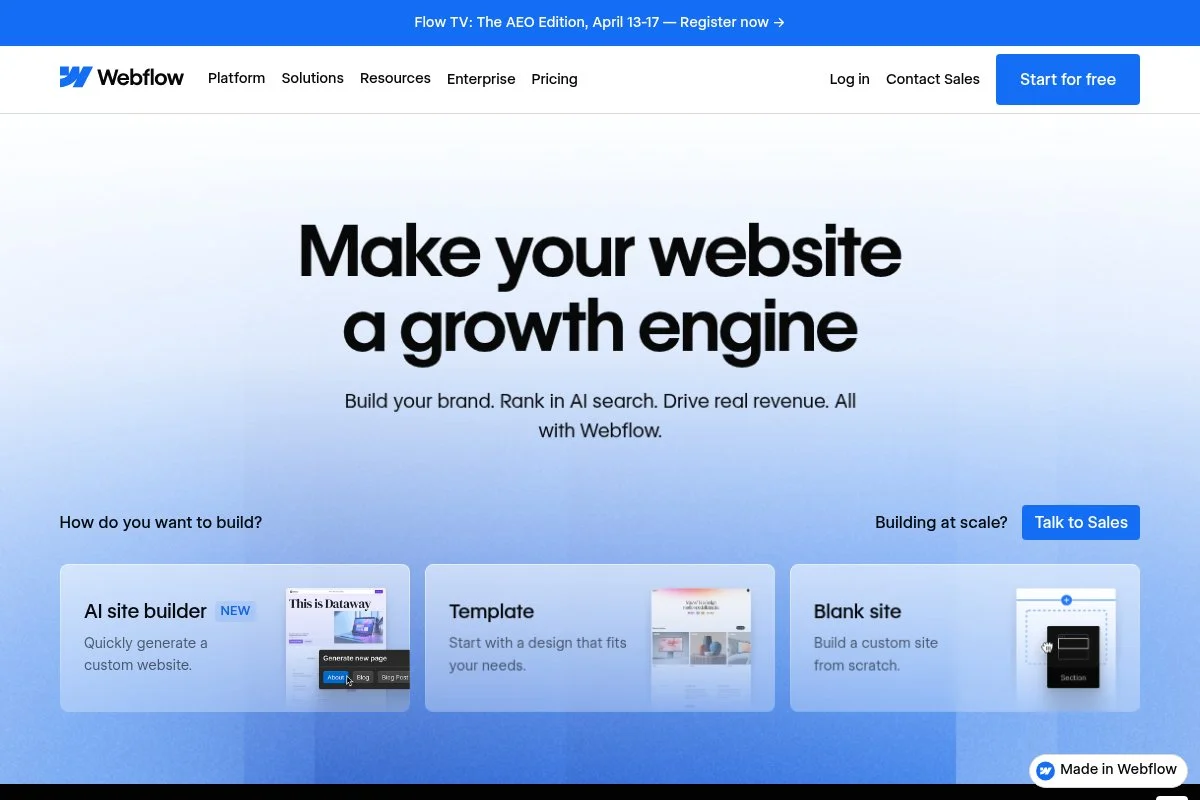
Webflow is a visual web design tool with CMS power. It gives you near‑code‑level control without hand‑coding every page. Agencies and advanced freelancers use it for custom layouts and scalable structures. There’s a generous free workspace to build and stage sites. Paid Site plans start at an accessible monthly rate when billed annually. The Designer interface mirrors CSS, so you work with classes, grids, and styles. Daily tasks include editing collection items, refining styles, and confidently publishing changes.
Recent years have brought performance gains, more components, improved interactions, and a stronger CMS. The logic features and better collaboration have made it friendlier for teams and growing portfolios. Higher plans add CMS item limits, site search, better form limits, and advanced SEO. You can add custom code, connect APIs, and integrate tools through embeds. Few builders match this level of control.
I recommend Webflow when a freelancer wants full design freedom and plans to scale content. The tradeoff is a learning curve. Once it clicks, you can ship fast and iterate safely. Community templates and clonables are a big perk. You can start from proven layouts and customize deeply.
How Webflow Works and Key Features
Webflow’s Designer is a visual CSS editor. You build sections, containers, grids, and components, then style with classes. Templates and clonables cover portfolios, blogs, and case study structures. Custom code and scripts are supported, with site‑wide and page‑level injection. The CMS lets you define custom content types for projects, testimonials, and blog posts. Analytics include built‑in traffic and search data, with easy Google Analytics setup. Interactions allow animations and scroll effects without external libraries.
Automation can be handled with logic, webhooks, Zapier, or Make. Webflow also offers forms, site search, and memberships on higher plans. Support includes a rich university of tutorials and community forums. For beginners, it takes practice. For advanced users, it’s a powerful canvas that replaces many plugins.
Who Webflow Is For
Webflow is for designers, front‑end‑savvy freelancers, agencies, and developers who want design control, a custom CMS, and clean hosting. It excels for case‑study libraries, content‑rich portfolios, and custom interactions. If you want instant setup and no learning curve, Squarespace or Carrd will feel easier. Some CSS knowledge helps, but tutorials bridge the gap.
Webflow Pricing
Webflow pricing spans free building and paid hosting, with plan features and CMS limits tied to the hosting plan. You can design in a free workspace, then add a Site plan for a custom domain.
- Starter (Build): Free, design and stage sites, Webflow.io domain.
- Basic (Site): About $14/month (annual), custom domain, fast hosting, no CMS.
- CMS (Site): About $23/month (annual), CMS collections, site search, and more form submissions.
- Business (Site): About $39/month (annual), higher limits, advanced features.
- Workspace/Team plans: Add collaboration, code export, and more seats.
Value is strong if you need design control and CMS. If you just want a one‑pager, Carrd is far cheaper. Annual billing reduces cost. Watch CMS item limits if your content grows quickly.
Webflow Pros and Cons
- Pros: Deep design control; custom CMS; fast hosting; rich learning resources.
- Pros: Strong for scaling case studies and content types.
- Cons: Learning curve; pricier than Carrd or Pixpa at scale.
- Cons: Some features require higher tiers or add‑ons.
If you need control and plan to grow, Webflow is worth it. If you want simple and cheap right now, start with Pixpa or Carrd.
Webflow Reviews
Webflow is widely reviewed on platforms like G2 and Capterra, with strong ratings for design control and CMS flexibility. Check those pages for current scores and review counts.
5. Cargo

Cargo is a portfolio platform popular among artists, illustrators, photographers, and studios seeking bold, unconventional layouts. It’s been serving creative communities for years with a curated vibe and distinctive templates. You can explore and build before paying. Plans are offered monthly or yearly at a fair rate. The editor combines visual controls with CSS access, letting you tweak designs more than most template‑driven tools.
Recent template packs and layout tools improved mobile handling and grid options. That makes it easier to present work in unique ways without breaking responsiveness. Paid accounts include custom domains, more pages, and media hosting. You can add custom CSS and embeds, which is handy for interactive pieces or embedded shops.
I like Cargo when a portfolio needs personality that still loads fast. It’s less plug‑and‑play than Squarespace, but the results stand out. The inspiration gallery and community examples help you quickly find a starting point.
How Cargo Works and Key Features
Cargo’s editor uses modules and layout controls with direct text and media editing. Templates are art‑driven, with options for grids, slideshows, and full‑bleed images. You can easily adjust typography, spacing, and colors, then extend them with custom CSS. It supports pages, projects, and galleries, with simple SEO fields. Analytics can connect via Google Analytics. Automation is minimal; most workflows rely on embeds or external tools for forms and booking. Support includes guides and email, and community showcases are great references.
Overall, Cargo is flexible for visuals and design tweaks, while staying simple enough for non‑coders.
Who Cargo Is For
Cargo fits artists, illustrators, photographers, motion designers, and studios that want expressive layouts. It excels at image‑heavy portfolios and lookbooks. If you need built‑in e‑commerce or deep blogging, Squarespace may be an easier path. No coding is required, but CSS helps if you want a unique look.
Cargo Pricing
Cargo offers simple pricing with monthly and annual options. You can build before paying and publish when ready.
- Standard: $14/month or $99/year, custom domain, templates, hosting, and core features.
- Student/Education: Discounted annual pricing is available for eligible users.
Compared with other builders, Cargo’s annual plan is a great value if you like its templates. If you plan to do heavy blogging or run a store, Squarespace may balance features and cost better for that use case.
Cargo Pros and Cons
- Pros: Distinctive templates; fair annual pricing; CSS flexibility; strong creative community.
- Pros: Easy to present large visuals and grids.
- Cons: Lighter on native store and blog tools; fewer third‑party integrations.
- Cons: Editor takes a moment to learn compared with Squarespace.
If you want a creative look that stands out and you’re okay with light add‑ons, Cargo is a strong pick. For an all‑in‑one store and blog, consider Squarespace.
Cargo Reviews
Cargo has fewer mainstream directory reviews than larger platforms, but it’s respected in creative circles. Browse Cargo’s showcase and design forums to see real site examples and feedback.
What Is the Best Freelance Portfolio Builder Right Now?
My top picks right now are Pixpa for most creatives, Carrd for one‑page speed and value, and Webflow for design control and scale. Squarespace is a close fourth if you want a polished look with minimal setup. Pixpa is my #1 because I actually use it for quick creative builds and recommend it often. This opinion isn’t sponsored. I first tried Pixpa while helping a photographer friend who needed proofing without extra plugins. The first thing that impressed me was how fast we could publish galleries and collect leads. The clincher was the balance of price, client galleries, and a clean editor.
On value, Pixpa scales well. To match the same gallery proofing and store setup as a general builder, you’d likely pay for a higher tier plus add‑ons. With Pixpa, you get those essentials at the entry level, and annual billing keeps costs predictable. If you price in time saved on proofing and approvals, it pays for itself quickly. Carrd is my #2 because it nails the one‑page use case. If your goal is leads fast (a clean headline, your best three wins, and a form), Carrd gets you live today. Recent template updates and custom code options make it flexible enough for campaigns and resumes. If I only needed a single landing page for a new service, I’d start here.
The unique strength of Carrd is total simplicity at a price that feels almost free. You can run multiple sites on a low‑cost Pro plan, which is perfect for testing offers or niches. If my work didn’t require multi‑page case studies, Carrd would be my pick. Webflow is my #3 choice because it’s the best way to build a custom, scalable portfolio without hiring a developer. If you need custom content types and pixel‑level control, nothing else on this list matches it. There’s a learning curve, but once it clicks, you can ship beautiful, fast sites.
I often use more than one tool. I’ll spin up a Carrd page to test a service, then move the proven content into Pixpa or Webflow for the long term. That mix keeps costs low and experiments fast. Choosing between these top options is a good problem. I stuck with Pixpa because it covers galleries, proofing, and sales without extra parts, and my clients respond well to the clean layout.
I hope this helped narrow your choice. Pick the tool that gets your best work live this week. Ship it, share it, and let it bring in the next great client.
Frequently Asked Questions
Q: What should a freelance portfolio include?
Keep it tight: a clear headline, services, 3–6 case studies with outcomes, testimonials, and one strong contact method. Add pricing guidance or a starting rate if that fits your niche.
Q: Do I need a custom domain right away?
Yes, if you’re pitching clients. A custom domain signals you’re serious and makes email look professional. Most builders include easy domain connections, and some include a domain with annual plans.
Q: Which builder is best for photographers?
I lean toward Pixpa for galleries and client proofing at a low cost. Squarespace also works well for a polished look. If you want unusual layouts, Cargo is a fun option.
Q: How can I make my portfolio load faster?
Compress images, limit heavy scripts, and use modern formats like WebP where possible. Pick a clean template, avoid auto‑playing videos, and enable caching and a CDN if your builder supports it.
Photo by Daniel Thomas: Unsplash


