


I learned to love simple project tools the hard way. A few years ago, I was juggling editorial planning, client calls, and invoices in a mess of spreadsheets. Nothing synced, and I missed deadlines that should have been slam dunks. I wanted a clean system I could run solo without paying enterprise prices. The goal was clear: a weekly plan I could trust and a daily view that kept me honest.
What kicked me into gear was watching a friend who runs a one‑person design studio hit every deliverable using a lightweight board and a few automations. No huge stack. Just focus. I assumed finding that tool would be easy. It wasn’t. Free tiers hide limits. “Unlimited” has asterisks. And some tools make you feel like you need an MBA to set up a to‑do list.
From talking with hundreds of solo operators, I saw the pattern: winners pick a tool that’s quick to set up, cheap to grow, and flexible enough to adapt. You don’t need the fanciest suite. You need something you’ll actually open every day, with automations that shave minutes and views that match how your brain works.
This guide pulls together what worked for me and for the solopreneurs I trust. It’s practical, budget‑minded, and straight about tradeoffs.
Comparison of 6 Best Cheap Project Management Tools in 2026 With Pricing and Recommended Use Cases
Scroll for my detailed take on each, including which one I personally chose and the best free options if you’re just starting out.
What Is a Project Management Tool?
A project management tool is software that helps plan, track, and deliver work. It organizes tasks, files, timelines, and communication so you finish projects on time. I follow the rule, “What gets scheduled gets done.” These tools make that real by turning ideas into tasks with owners and due dates. For solo operators, that means clarity and fewer dropped balls.
Think of it this way: running projects in email is like tracking expenses in a shoebox. You can do it, but it costs time. A lean tool can save hours each week, which translates into billable work. At its core, a project tool lets freelancers, consultants, and solo founders collect client inputs and notes, assign steps to themselves, automate follow‑ups, and deliver a clean result without chaos.
People often pair these tools with calendars, time trackers, cloud storage, and invoicing apps to complete the loop from intake to invoice. Not every option is equal, though, so let’s sort out which ones are worth your time and money.
How to Choose the Best Project Management Tool
Picking a project tool can feel overwhelming. There are dozens of names, overlapping features, and “free” plans that get pricey fast. I wrote this guide to help you find the right fit for how you work today, with room to grow tomorrow.
Most guides you’ll read are written by the companies themselves or by media sites running paid placements. I’m not sponsored by any platform on this list. This is my honest take based on real use and careful research. Here are some questions you should ask when looking for a tool:
- Does the free tier cover your current workload, and what are the limits?
- How fast can you add tasks, switch views, and find what’s due today?
- Can it scale from one person to contractors or a small team?
- What happens to pricing as you add seats, automations, or storage?
- Does it include the features you need now, like boards, timelines, dependencies, and docs?
- Are analytics useful: workload, velocity, due date trends, and basic reporting?
- How hard is it to export your data and migrate later if needed?
- Is it reliable, with good uptime, backups, and clear security practices?
- Any technical needs, such as API access, AI features, or specific integrations?
6 Best Project Management Tools in 2026
Here are my top picks for the best project management tools:
- ClickUp
- Notion
- Trello
- Asana
- Todoist
- Basecamp
Let’s see which one is right for you.
1. ClickUp
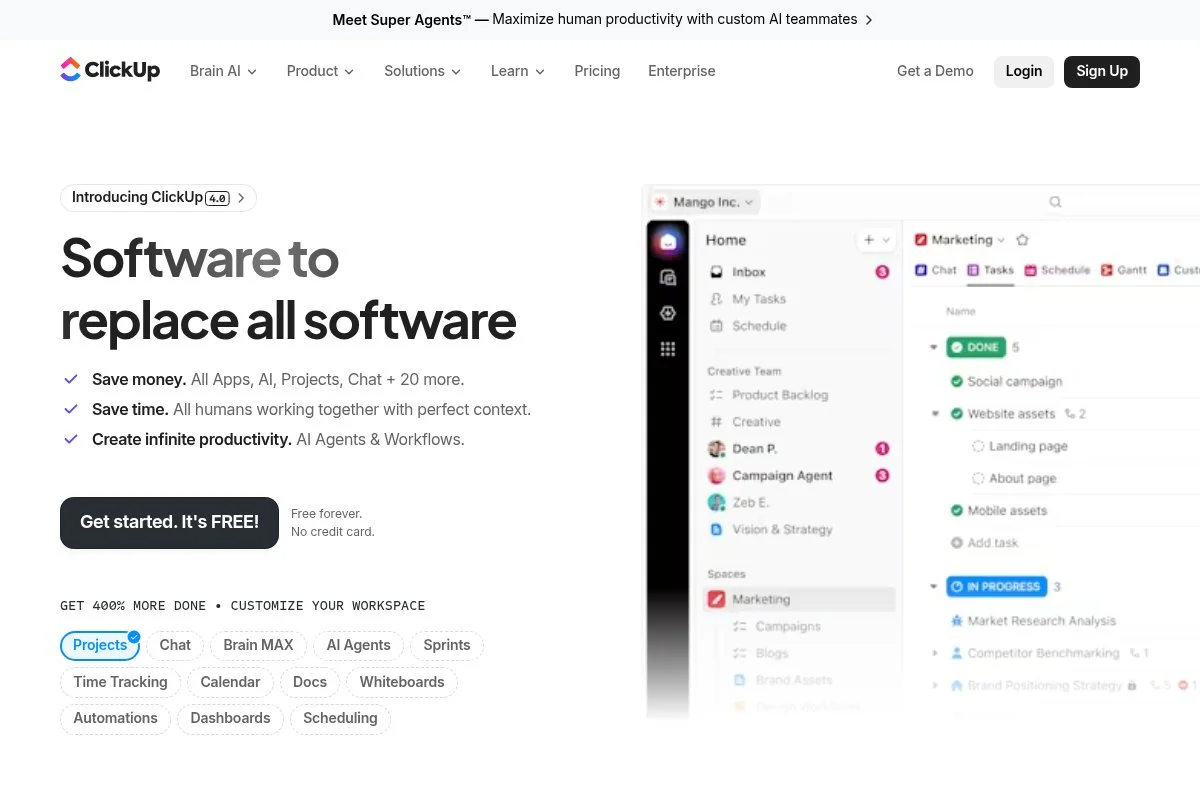
ClickUp is an all‑in‑one work hub designed to replace a patchwork of apps. It’s used by teams across industries and has grown quickly on the back of flexible views and deep customization. The company has invested heavily in speed and reliability since launching major updates over the last few years. You can start on a Free Forever plan. Setup is quick: create a Workspace, pick a template, and add tasks. The core experience revolves around Lists, Boards, and Calendar views. I rely on statuses, due dates, and custom fields, as well as the Home view, for a clear daily plan.
Recent releases brought improved performance, a refreshed interface, and ClickUp AI for drafting updates and summarizing tasks. These changes make it easier to manage larger projects without feeling heavy. Automations also became smoother, saving time on repetitive steps. On higher tiers, you get advanced permissions, Goals, time tracking, workload views, and more automation capacity. If you scale beyond solo work, those features help manage contractors and client reporting. Many tools lock these behind enterprise plans; ClickUp offers them earlier.
I use ClickUp daily to run content sprints and quarter planning. It’s not sponsored; I pay for it because it adapts to how I think, without forcing a rigid model. Support docs and templates are strong. I also like the community forum and template center, which cuts setup time for repeatable workflows.
How ClickUp Works and Key Features
ClickUp’s interface is flexible: switch between List, Board, Calendar, Gantt, and Inbox. You can choose minimal layouts or show rich details with custom fields and task descriptions. Templates cover content calendars, product launches, and CRM‑style pipelines. Advanced users can add custom fields, dependencies, and formulas. There’s a public API and integrations with Google Drive, Slack, GitHub, and more. Reporting includes workload, velocity, and dashboards for at‑a‑glance progress. Automations handle status changes, assignments, and reminders.
Beyond tasks, ClickUp includes Docs, Whiteboards, Goals, forms, and simple time tracking. Support is available through help docs, paid-tier chat, and a growing academy. As one user put it, “I replaced three apps with one and got my mornings back.” That kind of feedback comes up often. It’s beginner‑friendly with room to grow. Power users won’t feel boxed in.
Who ClickUp Is For
Ideal for freelancers, agency‑of‑one owners, content creators, marketers, consultants, and indie developers. It shines for content pipelines, client projects, and product roadmaps with dependencies. Goals, dashboards, and time tracking suit billable work. If you want ultra‑simple lists only, Trello or Todoist might feel lighter. No coding is required, but advanced options are available when needed.
ClickUp Pricing
ClickUp’s pricing scales by features and admin controls, with a generous free plan for individuals.
- Free Forever: $0/month, good for one user, unlimited tasks, basic views, limited automations.
- Unlimited: $7/member/month (annual), increased storage, unlimited integrations, more dashboards, and automations.
- Business: $12/member/month (annual), advanced automations, time tracking, workload, and advanced permissions.
- Business Plus: $19/member/month (annual), team sharing, subtask handling, and increased automation/admin controls.
- Enterprise: Custom pricing, SSO, advanced security, and dedicated support.
Compared to peers, it offers strong value for the features per dollar. Annual billing saves more than paying monthly. For a solopreneur, Unlimited often hits the sweet spot without breaking the bank.
Pros and Cons of ClickUp
Pros
- Powerful views and custom fields at low cost.
- Free plan is usable for true solo work.
- Automation, Docs, and dashboards in one place.
- Grows well from solo to small teams.
Cons
- Depth can feel overwhelming at first.
- Too many options can tempt over‑customization.
- Mobile is good, but not as fast as Todoist for quick add.
If you want power and flexibility without enterprise prices, pick ClickUp. If you only need a super‑light checklist, consider Todoist or Trello.
ClickUp Reviews
G2: 4.7/5 star rating (review counts change frequently). Capterra: 4.7/5. Feedback is very positive on flexibility and value for cost.
2. Notion
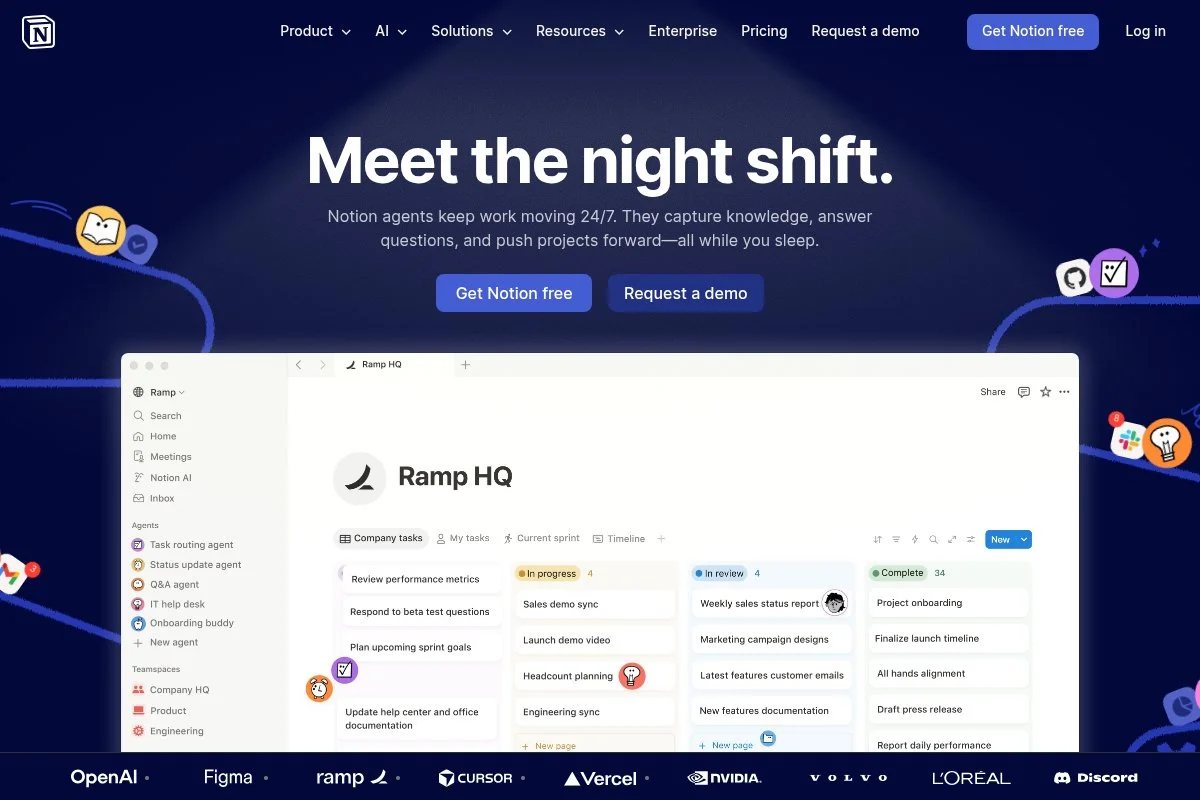
Notion is a docs‑meets‑database workspace built for flexibility. The team is known for careful design, a thriving template ecosystem, and rapid product growth. It’s popular with creators and indie businesses because you can blend notes, tasks, and knowledge in one place. You can start free as an individual. Set up a page, add a database, and you’re good to go. The core experience is simple: write, add a task to a database, and switch between table, board, list, and calendar views. I love linking meeting notes to tasks so context stays close.
Recent moves include Notion Projects, Notion Calendar (from the Cron acquisition), and Notion AI for summaries and drafting. That makes it far more project‑ready than a few years ago. The calendar tie‑in is a big win for weekly planning. On paid tiers, you get better permissions, version history, and higher upload limits. For client work, that matters—especially if you share pages externally. Database relations and rollups let you build CRM‑style views without code.
I reach for Notion when I’m working through briefs or research. Docs next to tasks save me from clicking between apps. The template gallery and community creators are excellent. You can grab a project OS in minutes and tweak it as your process matures.
How Notion Works and Key Features
Notion uses a clean, block‑based editor. Add text, databases, and media in one canvas. Templates cover content calendars, client portals, and product backlogs. You can customize properties, filters, and rollups to build dashboards that fit your brain. Advanced users can use relations, formulas, and linked databases. There’s a public API and integrations through connectors. Analytics are lightweight but enough for solo use: page history and basic database views. Notion AI helps summarize pages and draft updates.
Automation options include database triggers via integrations, as well as reminders and recurring tasks. Notion also handles simple websites and shareable docs. Support is solid via the help center and community. It’s balanced: approachable for beginners, powerful for tinkerers.
Who Notion Is For
Great for consultants, content creators, writers, coaches, and product thinkers who want docs and tasks in one place. It excels at research‑heavy work, client portals, and task-tied knowledge bases. If you need extensive reporting or strict Gantt dependencies, ClickUp or Asana may be a better fit. No coding needed; some database comfort helps.
Notion Pricing
Notion charges based on feature tiers and seats, with a generous free plan for individuals.
- Free: $0/month, unlimited pages and blocks for individuals, basic sharing, 5 MB file uploads.
- Plus: $8/user/month (annual), larger uploads, more guests, and 30‑day page history.
- Business: $15/user/month (annual), advanced permissions, SSO (with add‑ons), and 90‑day history.
- Enterprise: Custom pricing, advanced security, and unlimited history.
For solo users, Free or Plus is plenty. Compared to many PM tools, Notion’s value is strong if you want docs + tasks in one. Annual billing is cheaper than monthly.
Pros and Cons of Notion
Pros
- Docs and tasks live together cleanly.
- Flexible databases with board, list, and calendar views.
- Great templates and community resources.
- Affordable Plus tier for solo pros.
Cons
- Reporting is lighter than in ClickUp or Asana.
- Large databases can feel slower on mobile devices.
- Complex setups require tinkering time.
If you write a lot and want one workspace for notes and tasks, Notion is hard to beat. If you need deep PM analytics, look higher on this list.
Notion Reviews
G2: 4.7/5 star rating (review counts update often). Capterra: 4.7/5. Users praise flexibility and design.
3. Trello
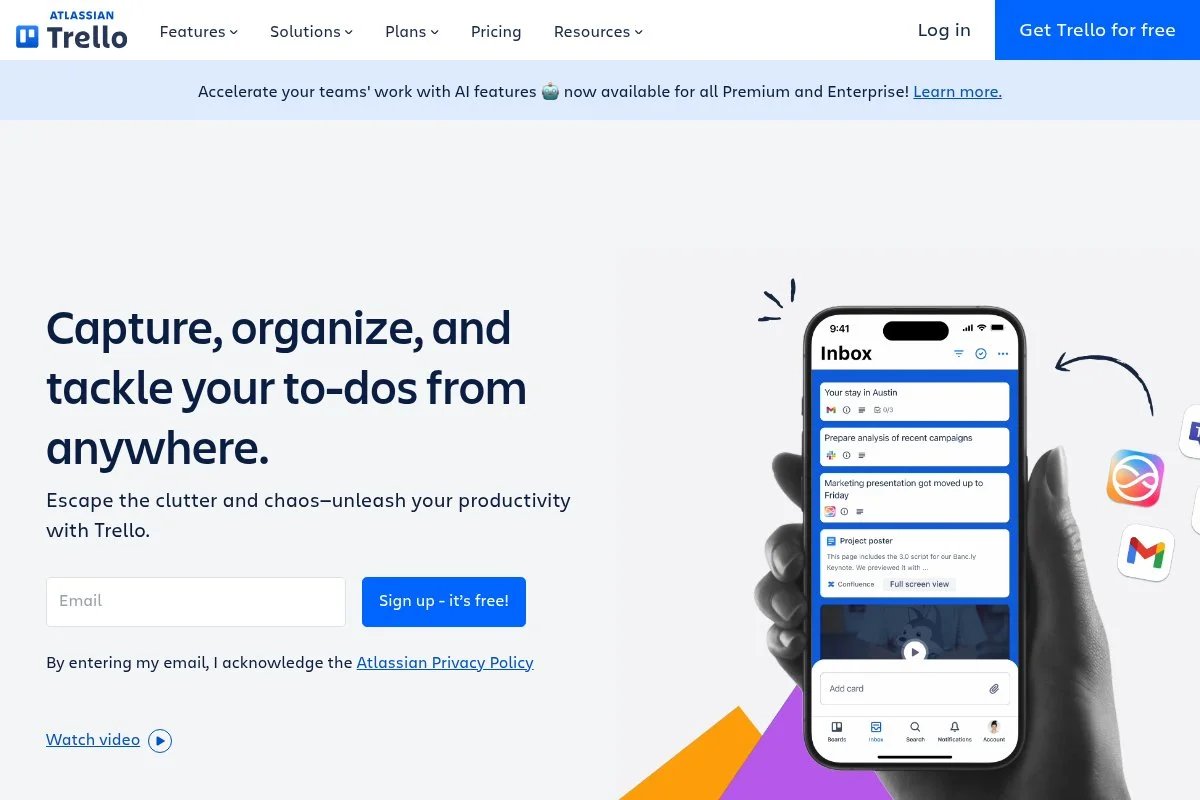
Trello is the classic Kanban board owned by Atlassian. It carved out a place with dead‑simple cards and lists. It’s still one of the fastest ways to map a project without a manual. The Free plan gets you moving in minutes. Create a board, add lists like To‑Do, Doing, Done, and drop in cards. The interface is visual and friendly. I like Trello for quick client pipelines or content ideas I can drag across stages.
Recent updates added views such as Timeline, Dashboard, and Table to the paid tiers, plus improved automations through Butler. These make Trello more viable for small operations that want light reporting. Premium unlocks more views, admin controls, and bigger automation limits. With Power‑Ups, you can bolt on calendars, time tracking, and integrations. It stays lighter than heavy PM suites, which many solo folks prefer.
I often recommend Trello to people who want a zero‑stress start and a board that feels like sticky notes you can carry. The Atlassian ecosystem and help docs are deep. Community templates let you copy proven boards for editorial calendars or client onboarding.
How Trello Works and Key Features
Trello uses a clean kanban interface. Cards hold checklists, due dates, attachments, and comments. Templates span marketing, design, and personal planning. Customization stays simple with labels and custom fields on paid plans. Advanced users can use Butler automation to move cards, assign members, and post reminders. Integrations with Google Drive, Slack, Jira, and more are available through Power‑Ups. Analytics appear as basic dashboards on Premium. Additional tools include calendar and timeline views for planning.
Support runs through Atlassian’s knowledge base and community. In practice, Trello is beginner‑friendly and quick. It’s perfect if you value visual flow over complex reporting.
Who Trello Is For
Best for creatives, social media managers, virtual assistants, and coaches who want a simple visual workflow. It’s great for idea pipelines, weekly sprints, and light client delivery. If you need dependencies or detailed workload charts, ClickUp or Asana is a better fit. No technical skill needed.
Trello Pricing
Trello’s pricing is tiered by features and automation limits.
- Free: $0/month, up to 10 boards per Workspace, unlimited cards, and basic Power‑Ups.
- Standard: $5/user/month (annual), unlimited boards, custom fields, and advanced checklists.
- Premium: $10/user/month (annual), Timeline, Calendar, Dashboard, Table views, and more automations.
- Enterprise: Custom pricing, org‑wide controls, and security.
For solo work, Free or Standard is often enough. Premium is competitive if you love Kanban but need extra views. Annual billing beats monthly rates.
Pros and Cons of Trello
Pros
- Fastest setup for visual planning.
- Great free plan for solo boards.
- Butler automation is simple and useful.
- Large template and Power‑Up ecosystem.
Cons
- Limited reporting on lower tiers.
- Complex projects can get messy without discipline.
- Dependencies and resource views are basic.
Choose Trello if you want Kanban done right and cheaply. If you need advanced PM features, go with ClickUp or Asana.
Trello Reviews
G2: 4.4/5 star rating. Capterra: 4.5/5. Users praise ease of use and visual clarity.
4. Asana
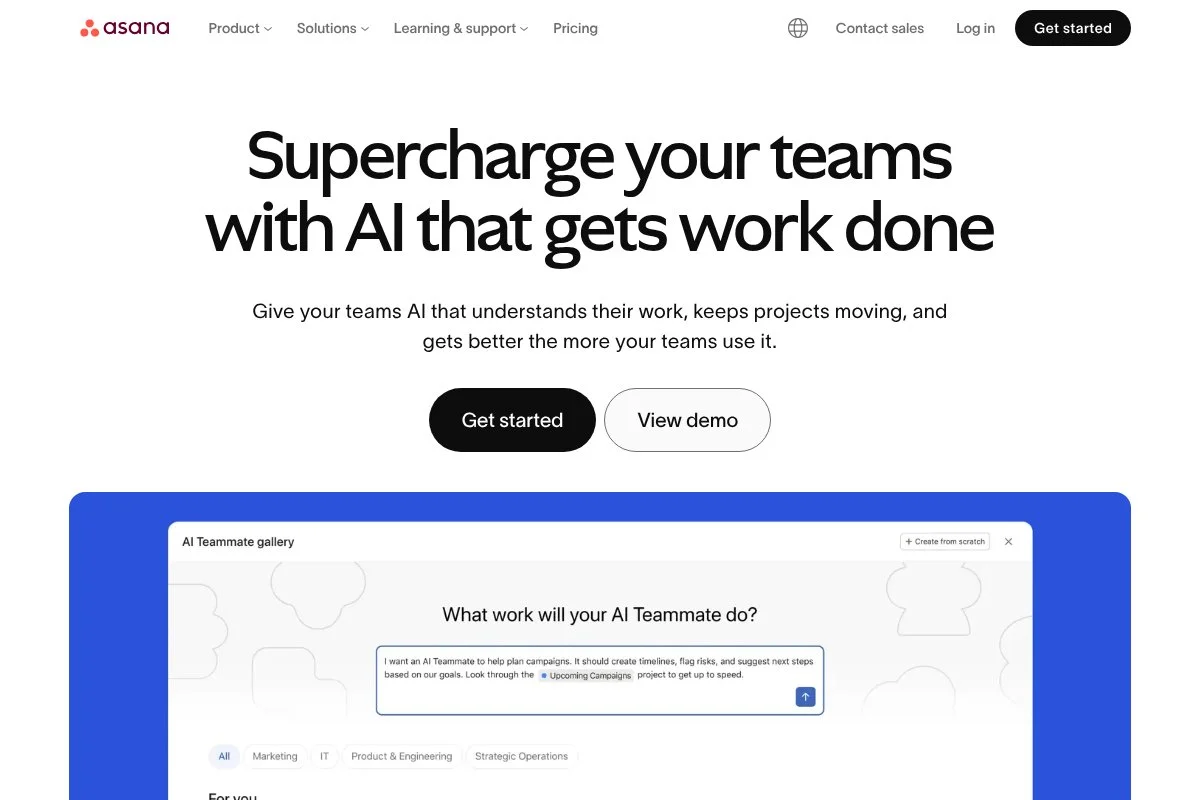
Asana is a structured project management platform focused on clarity. Founded by former Facebook leaders, it’s widely adopted for cross‑functional planning. Even solo, you benefit from its thoughtful task model and timelines. You can start for free on the Personal plan. Getting going is smooth: create a project, add sections, and plug in tasks. I like the balance of List and Timeline views for mapping out deliverables over weeks.
Recent updates added AI features for smart summaries and suggested tasks, as well as improved status reporting. Asana keeps sharpening workflows without bloating the core experience. Paid tiers unlock timelines with dependencies, custom fields, forms, and advanced reporting. If you manage multiple clients and want a calm, structured setup, these features help you see bottlenecks early.
I don’t use Asana every day anymore, but I respect it. Many solo consultants I know swear by its Timeline for planning retainers. Support materials and templates are strong. The onboarding tours help if you’re new to project planning.
How Asana Works and Key Features
Asana revolves around projects with tasks, due dates, assignees, and custom fields. Views include List, Board, Timeline, and Calendar. Templates speed up common workflows like client onboarding and content calendars. You can customize fields to track effort or status.
Advanced options enable dependencies, forms, and rules to automate handoffs. Integrations include Google Drive, Slack, and many others. Reporting features let you build dashboards and track progress across projects. Support is thorough, with a knowledge base and guided tours. The overall feel is structured but friendly. It’s ideal if you like order and clean timelines.
Who Asana Is For
Great for consultants, marketing pros, operations‑minded freelancers, and anyone who loves timelines. It excels at multi‑step deliverables with dependencies and approvals. If you want an all‑in‑one with docs and whiteboards, ClickUp might be a better fit. No technical skill needed.
Asana Pricing
Asana uses a tiered model based on features and seats, with a solid free option.
- Personal: $0/month, for individuals, core tasks and views, up to 10 collaborators.
- Starter: $10.99/user/month (annual), timelines with dependencies, forms, and custom fields.
- Advanced: $24.99/user/month (annual), advanced workflows, approvals, and reporting.
- Enterprise: Custom pricing, SSO, and security controls.
Pricing is mid‑range but fair for the features. Annual commitments reduce cost. For solo work, Personal or Starter usually covers everything.
Pros and Cons of Asana
Pros
- Excellent Timeline and dependency management.
- Clean interface with strong templates.
- Rules and forms automate repetitive steps.
Cons
- Less flexible than ClickUp for complex custom fields.
- Reporting depth improves on higher tiers.
- Free plan limits advanced features.
If you think in timelines and phases, Asana fits. If you want a doc‑heavy workflow, Notion may be better.
Asana Reviews
G2: 4.3/5 star rating. Capterra: 4.5/5. Reviews highlight timelines and ease of collaboration.
5. Todoist
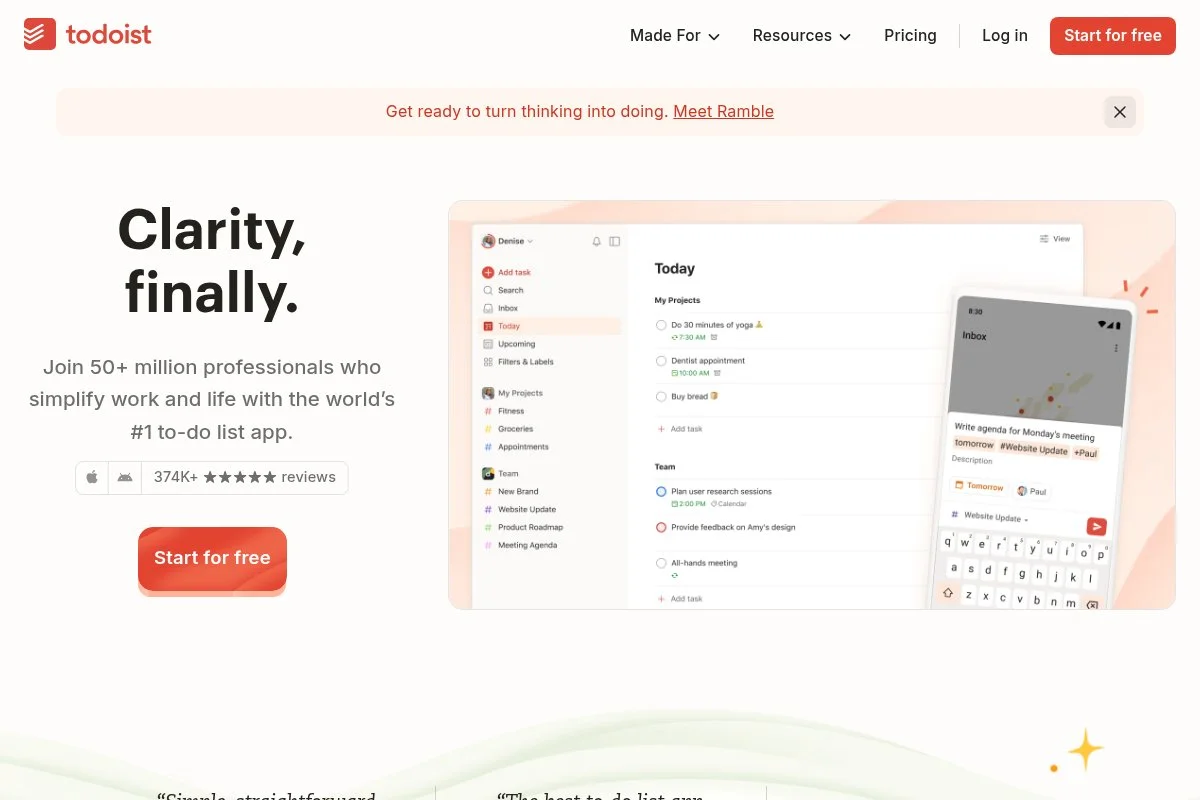
Todoist is a fast, focused task manager. It’s not a full project suite, but for solo work, it’s often enough. The speed of capture and clean design keeps you moving. The Free plan works out of the box. Add tasks with natural language dates, group them into projects, and check Today or Upcoming. I use it as an inbox for quick tasks and routines.
Recent updates improved boards, filters, and calendar views. It still stays light, which I appreciate when I just need to get stuff done. Pro tiers unlock reminders, filters, labels, and larger project limits. For client work, Business adds shared roles and centralized billing.
I pair Todoist with a heavier tool when a project needs dependencies. But as a daily companion, it’s hard to beat. Support and guides are great for habits and productivity. The blog and templates help you set up systems fast.
How Todoist Works and Key Features
Todoist uses a minimal interface with fast entry. Type “Send invoice Monday 9 am,” and it schedules itself. You can switch to board view for kanban‑style stages and use filters for custom lists like “Overdue + High Priority.” Advanced users get labels, filters with logical operators, and calendar sync. Integrations include Google Calendar, Slack, and Zapier. Basic activity logs give light reporting. Automations run through rules and integrations rather than heavy in‑app builders.
Support is responsive, and help docs are clear. The overall feel is lightning-fast for personal tasks. It pairs well with a doc tool or a lightweight CRM.
Who Todoist Is For
Perfect for solo creators, writers, consultants, and coaches who want speed. It excels at daily lists, recurring routines, and quick captures on mobile. If you need timelines, dependencies, or complex reporting, use ClickUp or Asana. No technical skill required.
Todoist Pricing
Todoist offers simple, affordable pricing with meaningful features at each tier.
- Free: $0/month, core tasks, 5 active projects, and basic sharing.
- Pro: $5/month (annual), higher project limits, reminders, labels, and filters.
- Business: $8/user/month (annual), team features, roles, and centralized billing.
Value is excellent for solo use. Annual pricing is cheaper than monthly. If you only need fast tasks with light collaboration, Pro is a small price for a big upgrade.
Pros and Cons of Todoist
Pros
- Blazing‑fast capture with natural language.
- Low cost for Pro with useful features.
- Reliable mobile apps and offline support.
Cons
- Limited PM features: dependencies and timelines are basic.
- Reporting is lighter than with full PM tools.
- Client collaboration works, but a client portal does not.
If you live in lists and want speed, go with Todoist. If you manage complex projects, consider ClickUp or Asana.
Todoist Reviews
G2: 4.4/5 star rating. Capterra: 4.6/5. Users highlight speed and cross‑platform reliability.
6. Basecamp
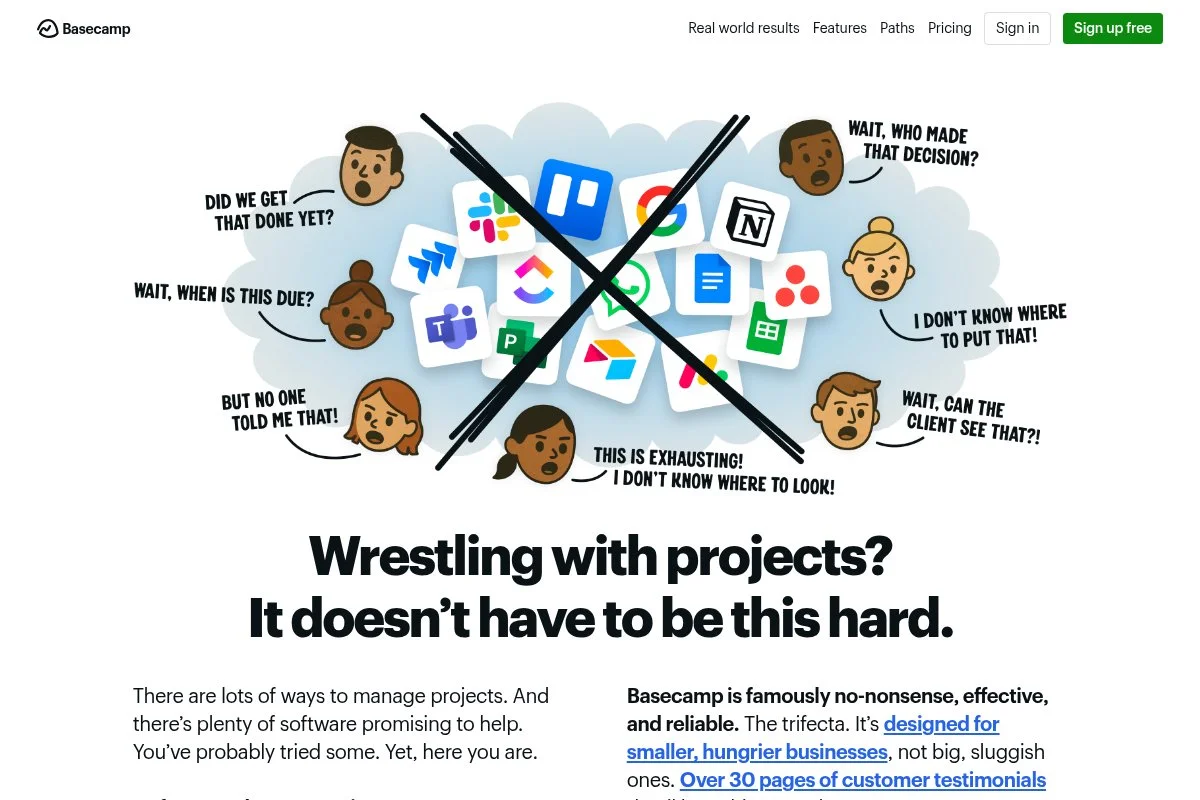
Basecamp is a calm, client‑friendly project hub from the team at 37signals. It focuses on clarity over complexity. Each project gives you To‑dos, Messages, Docs & Files, and Schedules in one place. There’s a free 30‑day trial, then a flat per‑user price. Setup is fast: create a project, invite a client, and decide what they can see. I like Basecamp when I need a straightforward home for a client engagement without extra views.
Recent versions streamlined the UI and improved Hill Charts for progress snapshots. It stays opinionated, which helps if you want fewer knobs to turn. You won’t find deep dependencies or complex reporting here. Instead, you get reliable basics: to‑dos with assignments and dates, message threads, and a shared file area. That can be perfect for solo client services. I reach for Basecamp when a client wants a simple portal for updates and files without having to learn a new system. Help docs are clear, and the product team is known for thoughtful communication and long‑term stability.
How Basecamp Works and Key Features
Basecamp organizes work into projects, each with tools: To‑dos, Messages, Docs & Files, Schedule, and automatic check‑ins. The interface is minimal and distraction‑free. Templates let you spin up repeatable client projects quickly. For power users, there’s email‑in, simple automations, and Hill Charts to visualize progress “from figuring it out to shipping.” Integrations connect with popular storage and comms tools. Reporting is light but serviceable for solo work.
Support is responsive, and the learning curve is short. Overall, Basecamp is about clarity and client visibility, not heavy PM mechanics.
Who Basecamp Is For
Best for freelancers, studios of one, consultants, and agencies working closely with clients. It excels at client updates, shared files, and simple plans. If you need complex dependencies or advanced analytics, ClickUp or Asana is better. No technical skill required.
Basecamp Pricing
Basecamp keeps pricing straightforward with a per‑user model and a free trial.
- Basecamp: $15/user/month, all core features, unlimited projects and users on your account, 30‑day free trial.
- Basecamp Pro Unlimited: Flat annual fee for larger teams, advanced admin, and priority support (contact sales).
For a solopreneur, $15/month is predictable and includes access to clients. If you grow to a small team, Pro Unlimited can make sense. There’s no free plan after the trial.
Pros and Cons of Basecamp
Pros
- Client‑friendly portal with clear tools.
- Flat per‑user pricing is simple to budget.
- Hill Charts give easy progress snapshots.
Cons
- Light reporting and no deep dependencies.
- No always‑free plan, only a trial.
- Fewer integrations than some rivals.
Pick Basecamp if you value calm client communication. If you need granular PM features, choose ClickUp or Asana.
Basecamp Reviews
G2: 4.1/5 star rating. Capterra: 4.3/5. Reviews are steady, praising simplicity and client‑friendly structure.
What Is the Best Project Management Tool Right Now?
My top picks this year are ClickUp, Notion, and Trello. For most solopreneurs who want power and value, ClickUp takes the crown. If you want documents tied tightly to tasks, Notion is right there. If you want a visual board with the least friction, Trello is a great start. ClickUp is my personal choice, and I use it daily. This isn’t sponsored. I first tried it after a colleague showed me their content pipeline running in a single space, with tasks, docs, and dashboards all together. The setup felt flexible without being chaotic. What sold me was the combo of views, custom fields, and easy automations that saved me hours each week.
On value, ClickUp scales well. Unlimited at $7/member/month (annual) gives you serious features you’d pay more for elsewhere. Compare that to tools that jump to $10–$15 per user for similar depth, or require extra add‑ons for dashboards. If you stay solo, the Free plan may be enough for months. Notion is my close second because I write a lot. Having briefs, research, and tasks in one doc‑driven workspace keeps me focused. With Notion Projects and Calendar, it’s now truly viable for project planning. If you live in docs and want a flexible database under the hood, you’ll be happy here.
The unique strength of Notion is how it blends knowledge and execution. You can build a client portal, a CRM‑lite, and a content board without code. If I ran a research‑heavy solo practice, I’d likely pick Notion first. My third pick is Trello, especially if you want a free, visual start. The kanban flow works for almost any service business. Add Premium later if you need a timeline or dashboards; until then, the Free or Standard tiers go far.
I actually use more than one tool. ClickUp runs my production sprints and quarterly plans. Todoist handles quick personal tasks. Notion stores notes and long‑form docs. That mix keeps each app in its lane. Choosing between ClickUp and Notion can be tough. I stuck with ClickUp because dashboards, automations, and workload views matter for how I ship content. If your work is more writing and client docs, Notion could win.
I hope this helped you pick a setup you’ll actually open every day. Ship the work, keep it simple, and upgrade only when your process outgrows your tools.
Frequently Asked Questions
Q: What’s the cheapest project management tool for a true beginner?
Trello and Notion both have useful free plans. If you want a visual board, start with Trello. If you want docs plus tasks, start with Notion. You can always upgrade later.
Q: Can I manage clients on a free plan?
Yes, within limits. Trello and Notion let you share boards or pages. Asana’s Personal plan supports collaborators. For a more polished client portal, Basecamp is worth the $15/user/month.
Q: Which tool is best for repetitive workflows and automations?
ClickUp offers the most automation headroom for the price. Trello’s Butler is great for kanban rules. Notion can automate via integrations, but deeper in‑app automations are lighter.
Q: How hard is it to switch later if I choose wrong?
Exporting tasks is doable from all six, though it takes some cleanup. I suggest keeping your structure simple at first. That way, migrating to a new tool is a few hours, not a week.
Photo by Alphabag: Unsplash


