


A few years ago, I hit a wall. My days were packed with client work, yet my to‑do list kept growing. I needed leverage without hiring a team I couldn’t afford. I started testing AI tools with a simple goal: ship more high‑quality work in less time. I wasn’t chasing shiny features. I wanted faster proposals, cleaner copy, quicker designs, and smarter research.
What pushed me over the edge was watching solo founders I admire run circles around bigger firms. They weren’t superheroes. They just stacked a few practical AI tools and built repeatable systems. Finding the right setup took longer than I expected. Many tools looked similar on the surface but felt very different once I tried real projects. Pricing pages were confusing, and “unlimited” rarely meant unlimited.
Here’s the insight that stuck with me: the best‑run solos don’t chase the most complex platform. They pick a few low‑cost tools that do the 80/20 work, like drafts, research, edits, and cleanup, then layer automation later. You don’t need enterprise budgets. You need tools that are fast to learn, fair on price, and reliable under deadline.
Comparison of 6 Best Low-Cost AI Tools in 2026 With Pricing and Recommended Use Cases
Scroll down for my detailed take on each tool, including which one I personally chose and the best free options if you’re just starting.
What Is an AI Tool?
An AI tool is software that uses machine learning models to help you complete tasks such as writing, research, design, editing, or automation more quickly and with fewer manual steps. I like the old saying: ” Work smarter, not harder. For solos, that means offloading the repetitive parts like first drafts, summaries, and image cleanups, so you can focus on strategy, relationships, and revenue.
Think of it this way: if AI helps you draft a solid 1,000‑word proposal in 8 minutes instead of 90, and you send five per week, you’re saving hours you can reallocate to billable work. At its core, this category helps freelancers and solo owners turn inputs such as prompts, documents, audio, video, or data into useful outputs like emails, posts, clips, designs, or automated actions that move your business forward.
Many pair AI tools with project management, CRM, bookkeeping, and scheduling apps to build a lean stack that runs repeatable processes without extra headcount. Not every option is equal in price, accuracy, or ease, so it pays to choose carefully.
How to Choose the Best AI Tool
Picking AI tools can feel overwhelming. There are countless options, overlapping features, and pricing pages that read like puzzles. I put this guide together to help you find the right fit for your work style, budget, and the outcomes you care about, without wasting weeks testing everything.
Most guides you’ll find are written by the companies themselves or by media sites with sponsored spots. I’m not sponsored by any platform on this list. This is my straight, unbiased view based on real projects, research, and hands‑on use. Here are some questions you should ask when looking for an AI tool:
- How generous is the free tier, and what are the caps?
- Can I complete core tasks in minutes without lengthy setup?
- Will it scale with more files, projects, or teammates?
- What happens to pricing as my usage grows month to month?
- Does it cover all the features I need, or will I need to add on?
- Are analytics clear enough to measure output and value?
- How hard is it to export content or migrate later?
- What reliability measures are in place for uptime and quality?
- Any technical needs like file formats, model choices, or API limits?
6 Best AI Tools in 2026
Here are my top picks for the best AI tools:
- ChatGPT (OpenAI)
- Notion AI
- Canva Magic Studio
- Perplexity
- Descript
- Zapier with AI
Let’s see which one is right for you.
1. ChatGPT (OpenAI)
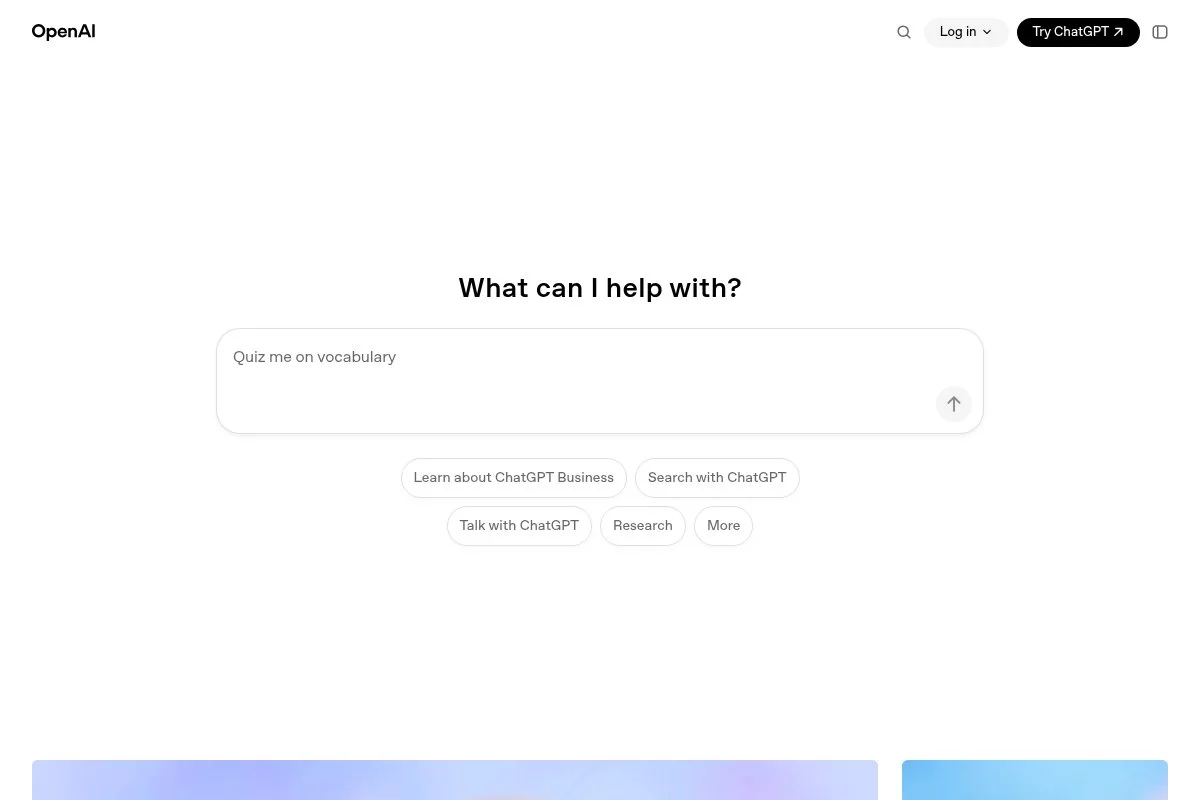
ChatGPT is an AI assistant focused on writing, reasoning, and problem-solving. OpenAI, founded by a team with deep roots in AI research, has set the pace for general‑purpose chat models used by millions of people and businesses. You can start free and get quick help on drafts, outlines, and code snippets. The chat interface is simple: write a prompt, refine it, and save the results. I use it daily for ideas, email cleanups, and turning notes into first drafts.
Recent releases added better reasoning and more control over style. Teams and business features improved sharing, admin controls, and collaboration. This opened the door for small shops to standardize prompts and speed up client work. Higher tiers unlock file uploads, longer context, and better performance. Teams adds workspaces and user controls, which matter once you bring on a contractor or VA. These options are rare in many low‑cost tools.
I use ChatGPT every day. No sponsorship, just habit. It’s my quickest path from idea to usable draft, which keeps me on schedule. Support docs are well written, and I appreciate the steady improvements to privacy options for business use. Little touches, like conversation search and pinned chats, save time.
How ChatGPT Works and Key Features
The main interface is a clean chat box with threads. You prompt, get a response, and iterate. You can set custom instructions, so replies match your tone or format preferences. Templates aren’t the focus, but you can save prompts and reuse them. Advanced users can integrate APIs from elsewhere, export text, and organize content by project. File uploads help summarize PDFs, spreadsheets, and meeting notes.
Analytics are light; it’s not a reporting tool. The power comes from speed and quality. Automations generally happen through other apps, but the Teams plan supports better sharing and controls for small groups. Support includes help docs and community tips. One independent brand designer told me, “It turns rough thoughts into client‑ready words in minutes.” It’s very beginner‑friendly while still helpful for advanced users who craft strong prompts.
Who ChatGPT Is For
Best for writers, consultants, coaches, marketers, and service providers who need fast drafts, ideas, and rewrites. It shines for emails, proposals, social captions, and light coding help. If you need deep research with citations in‑line, pair it with Perplexity. No technical skill required.
ChatGPT Pricing
OpenAI uses a freemium model with optional upgrades. Pricing varies by features and workspace needs, not by your audience size.
- Free: $0/month, basic chat access, and core capabilities
- ChatGPT Plus: $20/month, faster responses, and upgraded model access
- ChatGPT Team: from $25/user/month billed annually (or $30 monthly), shared workspace, and admin features
- Enterprise: custom pricing, higher security, and admin controls
Compared with alternatives, Plus is a strong value for solos. Teams is fair for small groups that need shared prompts and controls. Annual billing reduces the per‑seat cost on Teams.
ChatGPT Pros and Cons
Pros
- Fast, high‑quality drafts for everyday tasks
- Solid free tier; Plus is affordable for solos
- Teams adds useful admin and sharing controls
- Reliable performance for general writing and ideas
Cons
- Light analytics; not ideal for reporting
- Factual accuracy can vary without citations
- File handling is improving, but not a full DMS
If you want one AI tool to start with, pick this. If you need cited answers or research trails, add Perplexity.
ChatGPT Reviews
There are many public reviews across major platforms, but ratings and counts change frequently. If you rely on third‑party scores, check G2 or Product Hunt for the latest snapshots.
2. Notion AI

Notion AI is an add‑on inside Notion’s workspace for docs, wikis, and databases. Notion has grown a huge community since 2016 and is widely used by startups and creators for knowledge management. You can turn it on from any page and start with prompts like “summarize,” “rewrite,” or “help me write.” The magic is context: AI works right where your notes, tasks, and SOPs live. I use it to clean up meeting notes and draft project briefs.
Recent updates improved page summaries, action buttons, and database features. That means faster SOP creation and better handoffs when you bring on help. It reduces back‑and‑forth and keeps everything in one place. On paid plans, you can combine AI with databases, relations, and automations to manage roadmaps and client portals. For many solos, this replaces a separate docs app and a light wiki tool.
I don’t run my entire business in Notion, but I lean on Notion AI for templates, briefs, and rewriting. It’s strong for internal content that needs structure more than flair. Their templates gallery and community tutorials make onboarding easy. If you like organized systems, you’ll feel at home quickly.
How Notion AI Works and Key Features
The editor is WYSIWYG with blocks. You can ask AI to generate, summarize, fix tone, or translate within any page. Templates for wikis, meeting notes, and project briefs are easy to adapt. Advanced users can build relational databases with rollups, add formulas, and connect tools via integrations. You can track tasks, deadlines, and docs in one workspace.
Analytics are basic at the document level. Automations via Notion buttons and third‑party tools handle more complex flows. You can also publish pages or share client‑ready dashboards. Support includes guides, a large help center, and community channels. One operations lead at a boutique agency told me, “We ship SOPs 3x faster with AI inside the doc, not in another tab.”
Who Notion AI Is For
Great for consultants, one-person agencies, coaches, and creators who want their notes, tasks, and docs in one place. It’s ideal for SOPs, briefs, proposals, and client portals. If you only need chat, ChatGPT may be simpler. No coding needed.
Notion AI Pricing
Notion AI is a paid add‑on available on all plans. Pricing is per user and separate from your base Notion plan.
- AI Add‑on: $10/user/month, or $8/user/month billed annually
- Core Notion Plans: Free; paid workspace plans vary by features and seat count
For solos, the AI add‑on is a fair cost if you already live in Notion. If you’re not using Notion daily, consider starting with the free base plan plus the AI add‑on for a month to test the value.
Notion AI Pros and Cons
Pros
- AI lives where your docs and tasks already are
- Strong for SOPs, wikis, and internal docs
- Affordable add‑on for heavy Notion users
- Deep template ecosystem speeds onboarding
Cons
- Light analytics; not a reporting tool
- Less suited for long‑form creative writing
- Value drops if you don’t use Notion daily
If your work runs in Notion, the AI add‑on is a smart buy. If you prefer plain docs and chat, consider ChatGPT instead.
Notion AI Reviews
Notion’s core product has strong public reviews on major platforms. Ratings for the AI add‑on are typically included within those broader listings, so check current sources for the latest details.
3. Canva Magic Studio
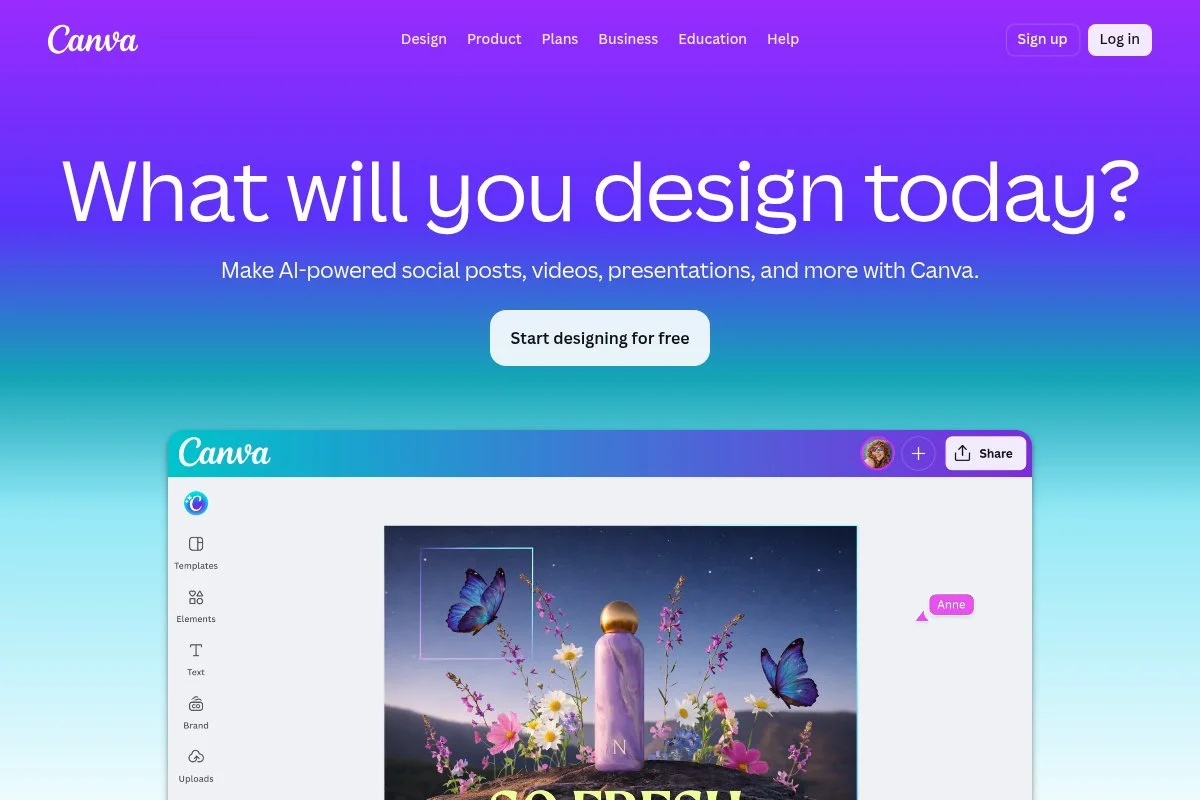
Canva Magic Studio bundles Canva’s AI features for design and content creation. Canva has been a go‑to for non‑designers for years, with a huge template library and strong brand tools. You can start for free. The drag‑and‑drop editor is familiar and fast. Magic Design creates drafts from a short brief, and Magic Write helps with captions and headlines. I use it for quick social posts, one‑pagers, and client mockups.
Recent improvements added better background removal, Magic Expand, and Magic Edit. These reduce the time spent fixing photos and repurposing assets into different formats or sizes. Pro adds Brand Kit, resize, and more asset storage. For solos without a designer, those features are worth it. AI tools are not a full replacement for pro design, but they get you 80% of the way there fast.
I like how share links, comments, and quick exports keep approvals tight. It’s easy to ship a draft the same day you pitch an idea.
How Canva Magic Studio Works and Key Features
The editor is drag‑and‑drop with real‑time previews. You can start with Magic Design to auto‑create layouts, then tweak fonts, colors, and images. Templates cover social posts, presentations, flyers, and more. Advanced users can upload brand kits, create templates, and automate resizing. You can integrate stock libraries, remove backgrounds, and swap elements with Magic Edit or Magic Eraser.
Analytics are basic, focused on collaboration and file history. Automations are light, but exporting to schedules or connected apps helps. You can also create simple websites and docs. Support includes a large help center and tutorials. One solo marketing consultant told me, “We turned a messy idea into a clean deck in under an hour.” Beginner‑friendly and fast, with enough power for most solo workflows.
Who Canva Magic Studio Is For
Perfect for creators, coaches, local businesses, and consultants who need on‑brand graphics, reels covers, or decks quickly. Great for repurposing content and running a light brand kit. If you need advanced video effects, consider Descript or a dedicated editor.
Canva Magic Studio Pricing
Canva offers a free plan with AI features available in set limits. Upgrading unlocks more assets, storage, and brand tools.
- Free: $0/month, core editor, templates, limited AI usage
- Pro: $14.99/month for 1 person, Brand Kit, Magic tools, resize
- Teams: pricing varies by seat count, with collaboration features
For solos, Pro is a solid value if you publish often. If you only design a few times a month, the free plan covers the basics. Annual billing offers savings on Pro.
Canva Magic Studio Pros and Cons
Pros
- Huge template library speeds up delivery
- Magic tools simplify photo edits and layouts
- Pro pricing is reasonable for frequent use
- Easy collaboration and exports
Cons
- AI outputs still need brand polish
- Advanced video features are limited
- Asset organization can get messy at scale
If you want clean visuals fast, Canva is tough to beat. For motion graphics or audio‑driven content, add Descript.
Canva Magic Studio Reviews
Canva has extensive third‑party reviews across major platforms. Ratings shift over time, so check current G2 or similar sources if scores matter to your decision.
4. Perplexity
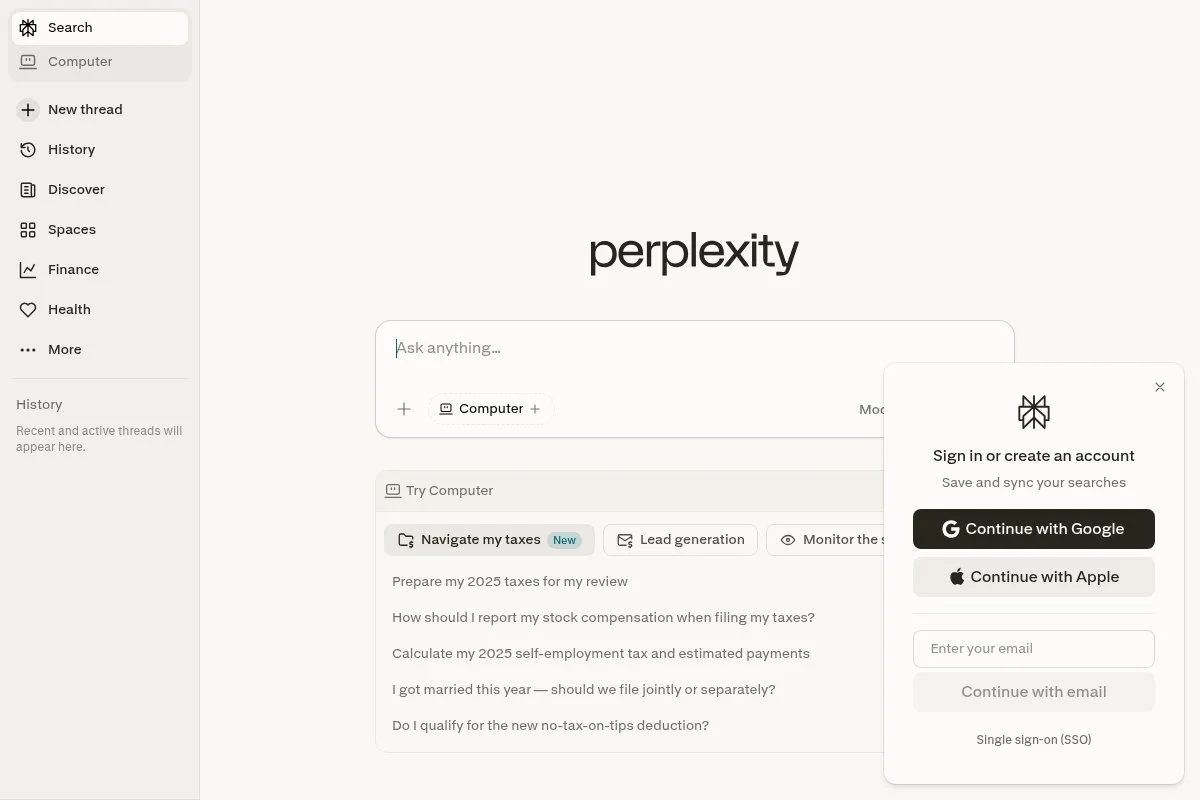
Perplexity is an AI answer engine focused on fast, cited research. The company gained traction for reliable sourcing and a clean interface that helps you dig deeper without getting lost. You can use it for free with daily limits. Ask a question, get a clear answer with citations, and open sources in new tabs. I use it when I need facts, market context, or competitive snapshots fast.
Recent enhancements improved follow‑up threads and model options for subscribers. That means better depth when you’re exploring a topic and want to refine in steps. Pro adds higher limits, more capable models, and focus settings for longer or more technical queries. This is helpful if your client’s work involves research or expert‑level summaries.
I keep Perplexity open next to ChatGPT. ChatGPT helps me write. Perplexity helps me check. That pairing reduces rewrites and awkward corrections later. The interface is speedy, mobile works well, and the citation layout saves time. Little details, like suggested follow‑ups, guide better questions.
How Perplexity Works and Key Features
The interface is a minimal search bar with threaded results. You ask, get a concise answer, and see inline source links. You can refine the thread with follow‑ups that remember context. Templates aren’t needed, but you can guide tone or depth. Advanced users can switch model options on Pro. Exports are simple, and you can copy answers to your Docs tool.
Analytics are light. The value is accuracy and speed. Automations are outside the product, though some workflows use it alongside note apps or browsers. Support includes help docs and a responsive UI. One independent consultant told me, “It’s my fastest path to sources I can send to clients.” Overall, beginner‑friendly for research and strong for pros who need citation trails.
Who Perplexity Is For
Ideal for consultants, analysts, marketers, and freelancers who need cited answers. Great for briefs, market snapshots, and fact‑checks. If you want help with creative writing, use ChatGPT. No technical skill required.
Perplexity Pricing
Perplexity uses a simple freemium model with paid upgrades for heavier usage and advanced models.
- Free: $0/month, daily usage limits, and core features
- Pro: $20/month or discounted annually, higher limits, and model options
For most solos, the free tier is fine for light research. Pro is worth it if you run multiple client projects or need longer sessions with better models.
Perplexity Pros and Cons
Pros
- Clear answers with citations and links
- Fast interface and mobile usability
- Simple pricing; strong value for research
Cons
- Not built for long‑form drafting
- Limited analytics and organization tools
- Heavy users may hit limits on free
Use Perplexity when accuracy and sources matter. Use a writing tool when you need content volume.
Perplexity Reviews
Public ratings exist on major platforms, but numbers change often. If ratings are important, check Product Hunt or app stores for the current snapshot.
5. Descript
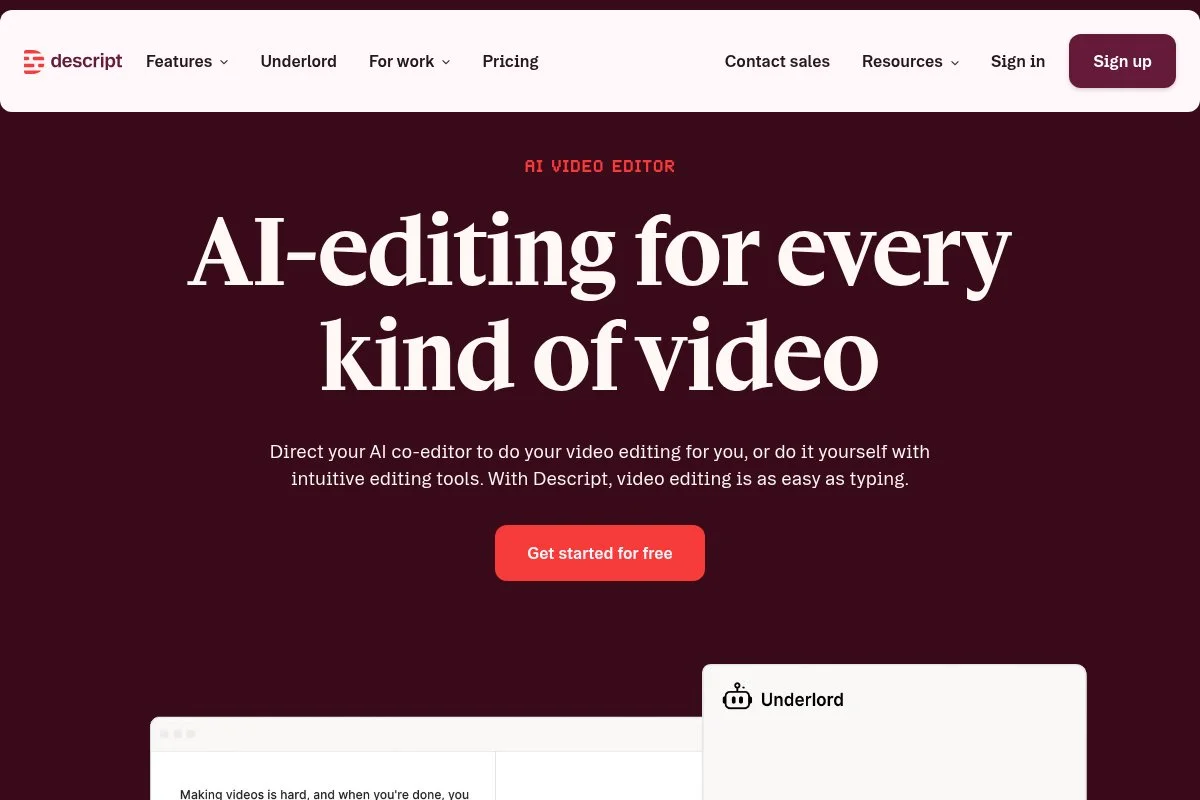
Descript is an audio and video editor with AI features like transcription, text‑based editing, and overdub voice cloning. It’s popular among podcasters and creators who want quick edits without complex timelines. You can start for free and upload a file to get an automatic transcript. Edit the words to edit the video. It’s that simple. I use it to cut filler words, generate captions, and export social clips.
Recent versions have improved multi‑track editing, green-screen effects, and studio sound cleanup. That opens the door for polished reels and explainers without expensive tools. Higher tiers add longer transcription hours, better export controls, and team collaboration. These are helpful when you’re batching episodes or working with an editor.
I don’t produce a weekly show, but Descript saves me when I need a fast tutorial or client update. It lowers the bar to shipping decent video. Their tutorials are clear, and the interface feels familiar after one project. That matters on deadline.
How Descript Works and Key Features
You upload audio or video, get a transcript, and edit like a doc. The timeline updates as you cut text. Templates and scenes help build intros, outros, and captions quickly. Advanced users can fine‑tune audio to achieve studio-quality sound, remove filler words, and use overdubbing for quick fixes. You can add b‑roll, transitions, and export in platform‑ready sizes.
Analytics focus on project details and captions; you’ll track performance in your hosting or social tools. Automations are light, but batch exports help. Support includes tutorials and community guides. One indie podcaster told me, “Text‑based edits cut my workflow time in half.”
It’s beginner‑friendly with enough depth for most solo video and podcast tasks.
Who Descript Is For
Great for podcasters, YouTubers, course creators, and service pros who share demos or tutorials. Strong for text‑based edits, captions, and quick social clips. If you need advanced effects or color grading, a pro editor may be a better fit. No advanced technical skill required.
Descript Pricing
Descript’s pricing is tiered by features and usage limits, with savings on annual billing.
- Free: $0/month, limited transcription and exports
- Creator: $12/user/month billed annually (or $15 monthly), more transcription and editing tools
- Pro: $24/user/month billed annually (or $30 monthly), advanced features, and higher limits
- Enterprise: custom pricing, team controls, and security
Compared with pro editors, it’s affordable and fast to learn. For batch creators, Pro’s limits are worth the jump. Annual plans lower the monthly rate.
Descript Pros and Cons
Pros
- Edit video by editing text
- Strong AI tools: transcription, filler removal, studio sound
- Good value compared with pro suites
- Helpful tutorials and templates
Cons
- Heavy files can tax older laptops
- Less control than full NLEs for advanced effects
- Transcription minutes can require upgrades
If you want faster podcasts and clips without a steep learning curve, Descript is a smart pick. Power editors may still prefer pro tools.
Descript Reviews
Descript has strong public feedback on review sites and creator communities. Ratings and counts vary, so check current G2 or similar listings for up‑to‑date numbers.
6. Zapier with AI
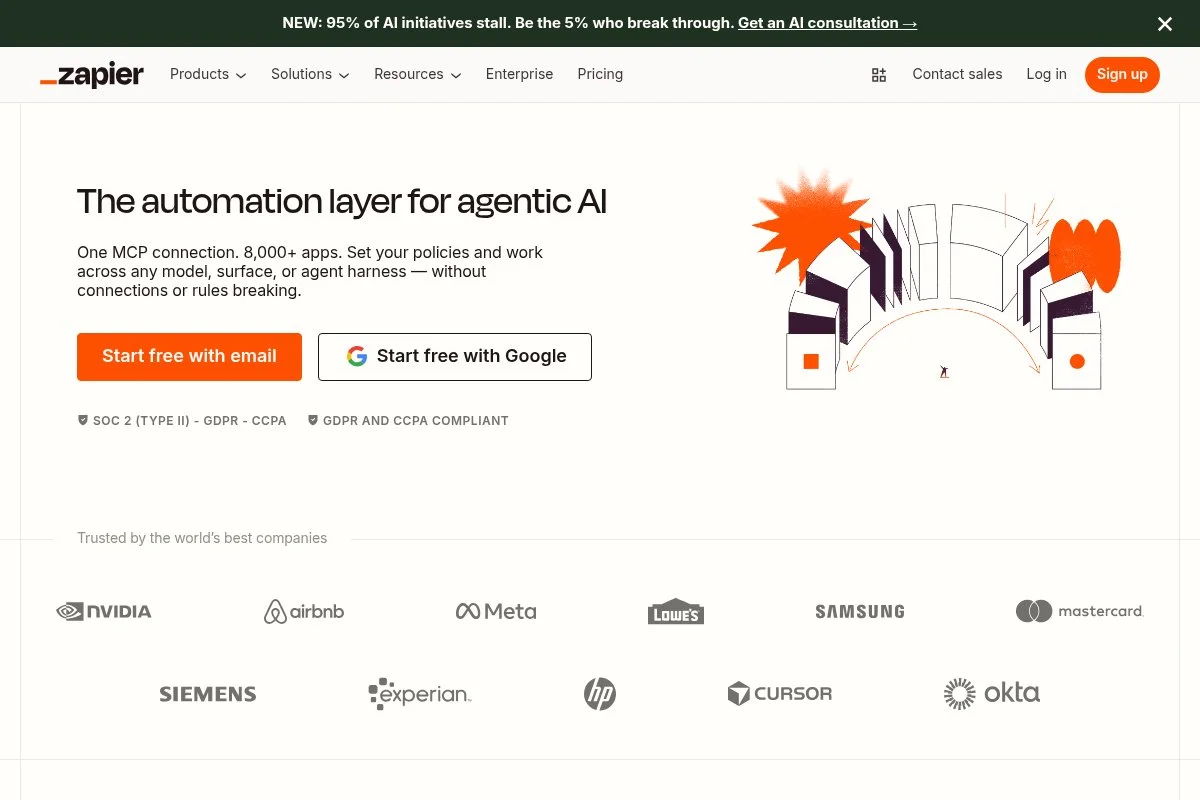
Zapier connects your apps and adds AI steps to automate tasks. It’s a staple for no‑code automation, supporting thousands of integrations used by small teams and solos worldwide. You can start for free with basic zaps. The builder lets you chain together triggers and actions. I use AI steps to clean leads, score inquiries, draft emails, and route content for approval.
Recent updates introduced AI assistants inside workflows and better data controls. That makes it easier to add summarization or rewriting at key steps, not just at the start or end. Paid tiers add more tasks per month, multi‑step zaps, and paths. For growth, that’s where value shows up: fewer manual touches and faster response times.
I treat Zapier as the glue that ties my stack together. It’s not flashy, but it quietly saves hours every week. Their templates help you automate in minutes. Support docs are clear, and the community shares plenty of ready‑to‑copy flows.
How Zapier with AI Works and Key Features
The interface is a visual flow builder. Pick a trigger, add actions, and insert AI steps to rewrite text, summarize, or classify. You can use paths for logic and schedule runs as needed. Templates get you started fast for CRMs, email tools, and docs. Advanced users can add webhooks, code steps, and filters. It connects to thousands of apps, making it flexible for solos.
Analytics show task history and run success. You can set alerts for failures. It’s easy to clone or version workflows. Support includes help articles and community examples. One agency owner told me, “It’s like hiring a silent assistant that never sleeps.” Beginner‑friendly to start, powerful enough as your system grows.
Who Zapier with AI Is For
Best for service pros, agencies of one, e‑commerce shops, and course creators who want to automate lead capture, follow‑ups, and content routing. Great for cleaning data and drafting responses. If you rarely repeat tasks, you may not need it. No coding required.
Zapier with AI Pricing
Zapier pricing is tiered by the number of tasks per month and by features like multi‑step zaps and paths. A free plan lets you test small flows.
- Free: $0/month, basic single‑step zaps and limited tasks
- Starter: paid plans typically begin around $19.99/month, with more tasks
- Professional and up: higher task limits, paths, and advanced features
- Team/Company: custom features for collaboration and governance
If your work is recurring, Starter can pay for itself fast. Costs scale with volume, so keep an eye on task usage. Annual billing usually lowers your effective monthly rate.
Zapier with AI Pros and Cons
Pros
- Connects thousands of apps without code
- AI steps add smart cleanups and summaries
- Templates and docs speed setup
- Scales with your workflow complexity
Cons
- Costs can rise with heavy task volume
- Troubleshooting failed runs takes practice
- Not ideal for rare, one‑off tasks
If you automate even a few key processes, Zapier quickly becomes a quiet workhorse. If your work is mostly ad hoc, start with free and reassess.
Zapier with AI Reviews
Zapier has extensive third‑party reviews across major sites. Because ratings and counts change, check current G2 or Trustpilot listings for the latest view.
What Is the Best AI Tool Right Now?
My top picks today are ChatGPT for everyday drafting and thinking, Perplexity for fast, cited research, and Canva Magic Studio for quick, on‑brand visuals. Together, they cover most solo workflows without breaking the bank. ChatGPT is my number one. I use it daily, and this take isn’t sponsored. I found it while testing options for quickly turning notes into drafts. What surprised me was how well it handled rewrites in my voice once I set clear instructions. The killer factor was speed to usable copy.
On value, Plus at $20/month is hard to beat for solos. Many niche tools charge more and do less. Teams adds shared prompts and admin without forcing an enterprise plan. If you write often, the time saved quickly covers the cost. Perplexity is a close second because it anchors my research. It gives me sources I can send to clients right away. Recent improvements to follow‑ups made it easier to go deeper without opening twenty tabs at once.
Its unique strength is trust through citations. If I focused on research‑heavy work full‑time, I might favor Perplexity as my primary tool and keep ChatGPT for drafting. Canva Magic Studio is my third choice. It’s perfect if you don’t need advanced editing but want clean visuals on a schedule. The free plan is generous, and Pro pricing is fair for anyone posting regularly.
I also use Notion AI for SOPs and briefs, and Descript for quick clips. Different tools shine at different steps. I’d rather combine a few winners than force one tool to do everything. Choosing between the top options is genuinely tough because they solve different problems. I stuck with ChatGPT as my main pick because it saves me time every single day across more tasks than anything else.
I hope this helped you sort your stack. If I had to start all over, I’d grab ChatGPT Plus, add Perplexity free, and upgrade Canva when posting more often. Happy building.
Frequently Asked Questions
Q: What’s the best free AI tool to start with?
Start with ChatGPT free for drafting and Perplexity free for research. That combo covers ideas, outlines, and fact‑checks with zero spend. Upgrade only when limits get in your way.
Q: Do I need multiple AI tools or just one?
I mix a few. ChatGPT for drafts, Perplexity for sources, Canva for visuals, and Descript for clips. Each one is focused, saving time and avoiding bloat.
Q: How do I avoid AI mistakes in client work?
Use Perplexity for citations, keep a simple checklist, and add a final human pass. I also save prompts that worked well, so I get consistent outputs.
Q: When should I pay instead of staying on free plans?
Pay when you hit limits often, or the upgrade unlocks a core workflow. For me, ChatGPT Plus paid for itself within a week of proposal writing and email cleanup.
Photo by Immo Wegmann: Unsplash


