


Payroll used to eat my Fridays. I wore every hat, and “payroll clerk” was the one I dreaded. Filing quarterlies, chasing forms, and second‑guessing tax tables wasn’t why I started my business. I wanted something simple: pay my contractors and myself on time, keep taxes in order, and avoid penalties. The tipping point was a state notice for a filing I submitted a day late. The fee was tiny. The stress wasn’t.
So I dug in. I talked with owners in my network, compared state tax support, and tested setups on weekends. I learned fast that “cheap” payroll gets expensive if it causes mistakes. The best solo operators I know keep payroll light. They automate core tasks, choose tools that play nice with their banking and accounting systems, and upgrade only when headcount grows.
You don’t need enterprise features. You need accurate tax filings, quick contractor payments, and year‑end forms handled without drama. If you hire later, you can scale. This guide shares what actually matters for self‑employed folks: clear pricing, state tax coverage, contractor handling, and how fast you can run your first payroll.
It’s straight advice from my experience and our team’s research. No fluff, no sponsorships, just what worked, what didn’t, and what I’d choose today. Here’s a quick side‑by‑side before we get into details.
Comparison of the 6 Best Payroll Software in 2026 With Pricing and Recommended Use Cases
Keep scrolling for my detailed take on each, including which one I personally chose and the easiest free or low‑cost starting points for beginners.
What Is Payroll Software?
Payroll software is a service that calculates pay, withholds and remits payroll taxes, and files required forms for employees and contractors. Its job is to pay people accurately and on time.
There’s a saying I live by: automate what’s repeatable. Payroll fits that perfectly. When software handles math and filings, you gain time and reduce avoidable penalties, which is key for independence and peace of mind. Think of it this way: fixing one late filing can take hours and may trigger fees. A solid payroll tool can cut that risk while saving two to four hours per pay run.
In short, payroll tools let owners and finance leads run payroll, handle tax calculations, sync hours from time tracking, and deliver pay stubs and year‑end forms, so money moves and records stay compliant. Many self‑employed folks pair payroll with bookkeeping (QuickBooks or Wave), time tracking (Square, Homebase), and benefits administration to round out their back office.
But not every option offers the same level of state coverage, automation, or price, so choosing matters carefully.
How to Choose the Best Payroll Software
Picking payroll can feel overwhelming. There are many names, similar claims, and small differences that only show up during tax season. I wrote this guide to help you pick a tool that fits your state, headcount, and budget, without overpaying for features you won’t use yet.
Most content you’ll find is written by vendors or ad‑driven lists with placement fees. I’m not sponsored by any platform on this list. This is a straight, honest take based on my research and hands‑on time.
Here are some questions you should ask when looking for a payroll tool:
- Is there a contractor‑only plan or an affordable starter tier?
- How fast can I run my first payroll and add workers?
- Will it scale cleanly if I hire W‑2 employees later?
- How does pricing change as I add people or states?
- Does it include tax filings, year‑end forms, and direct deposit?
- Are reports clear for taxes, wages, liabilities, and deductions?
- How hard is it to export data or migrate to another provider?
- What guarantees or accuracy protections are in place?
- Does it support my state taxes, multi‑state payroll, or 1099‑only?
It’s a lot, I know. The rankings below address these questions, so you can quickly match a tool to your situation.
Okay, enough of me rambling, let’s get into the list.
6 Best Payroll Software in 2026
Here are my top picks for the best payroll software:
- Square Payroll
- OnPay
- Patriot Payroll
- Gusto
- QuickBooks Payroll
- Wave Payroll
Let’s see which one is right for you.
1. Square Payroll

Square Payroll is built for small teams and solo operators who already use Square for payments, or want a simple way to pay contractors and employees. Square, founded by Jack Dorsey and Jim McKelvey, is a trusted name in small business tools with deep payments expertise.
Getting started is quick. You can begin on a contractor‑only plan and upgrade when you hire. The dashboard focuses on pay runs, team profiles, and tax documents. Daily tasks include approving hours, running payroll, and sending 1099s with a few clicks.
Recent years have brought tighter integrations across Square’s ecosystem: time tracking, scheduling, and tips import directly. That means fewer manual edits and cleaner records, especially for service businesses moving between shifts and job sites.
Higher tiers support W‑2 payroll with automatic tax filings, benefits, and multi‑state support. You also get tip pooling, wage garnishments, and sick leave tracking. These are features many basic tools skip.
I use Square Payroll for contractor payouts on side projects. The setup was painless, and 1099‑NEC delivery at year‑end saved me hours. One more thing I like: Square’s help center is practical and well-organized. When I had a state tax question, chat support pointed me to the right setting in minutes.
How Square Payroll Works and Key Features
Square’s interface is clean and task‑first. You approve hours, confirm pay rates, and run payroll in a guided flow. Templates handle recurring pay items, and you can easily customize deductions and reimbursements.
Advanced users can sync with Square Timecards and scheduling, import tips, and connect to accounting tools. Integrations cover popular apps, and CSV exports enable deeper analysis. Reports include payroll summaries, tax liabilities, and contractor payments by period. Automation covers tax filings, direct deposit, and year‑end forms for both W‑2 and 1099 workers. You also get basic onboarding, employee self‑service for pay stubs, and document storage.
Support includes articles, community threads, and live help. One independent cafe owner told me, “I moved my crew onto Square in a week and haven’t looked back.” Overall, Square is beginner‑friendly with enough power for growing teams—especially if you already use Square for payments or time tracking.
Who Is Square Payroll For?
Great for solo owners, freelancers paying 1099 contractors, mobile service teams, cafes, salons, and field crews. It shines for contractor‑only setups and service businesses with tips and timecards. If you need advanced HR or in-depth custom reporting, OnPay or Gusto may be a better fit. No heavy technical skill required.
Square Payroll Pricing
Square offers two clear models: a contractor‑only option and a full‑service W‑2 payroll plan. Pricing scales with your headcount.
- Contractor Only: $6/month per contractor, includes 1099‑NEC e‑delivery, direct deposit, and basic reporting
- Employees (W‑2): $35/month base + $6/month per employee, includes automatic tax filings, direct deposit, and year‑end W‑2s
Value‑wise, the contractor plan is one of the most affordable ways to pay 1099 workers at scale. If you add W-2S, the base-plus-per-employee model is middle‑of‑the‑road compared with Gusto and OnPay. Annual prepay isn’t required; you pay monthly.
Square Payroll Pros and Cons
Pros
- Low‑cost contractor plan with e‑filed 1099s
- Strong fit if you already use Square for POS or timecards
- Fast setup and easy first payroll
- Good reporting for small teams
Cons
- Not the deepest HR feature set
- Reporting is simpler than OnPay or Gusto
- Best value is in the Square ecosystem
If you need quick contractor payments or run a service shop on Square, start here. If you want richer HR and integrations, consider Gusto or OnPay.
Square Payroll Reviews
G2: 4.6/5 rating (hundreds of reviews). Capterra: 4.7/5 rating (hundreds of reviews). Feedback highlights ease of setup and contractor support.
2. OnPay
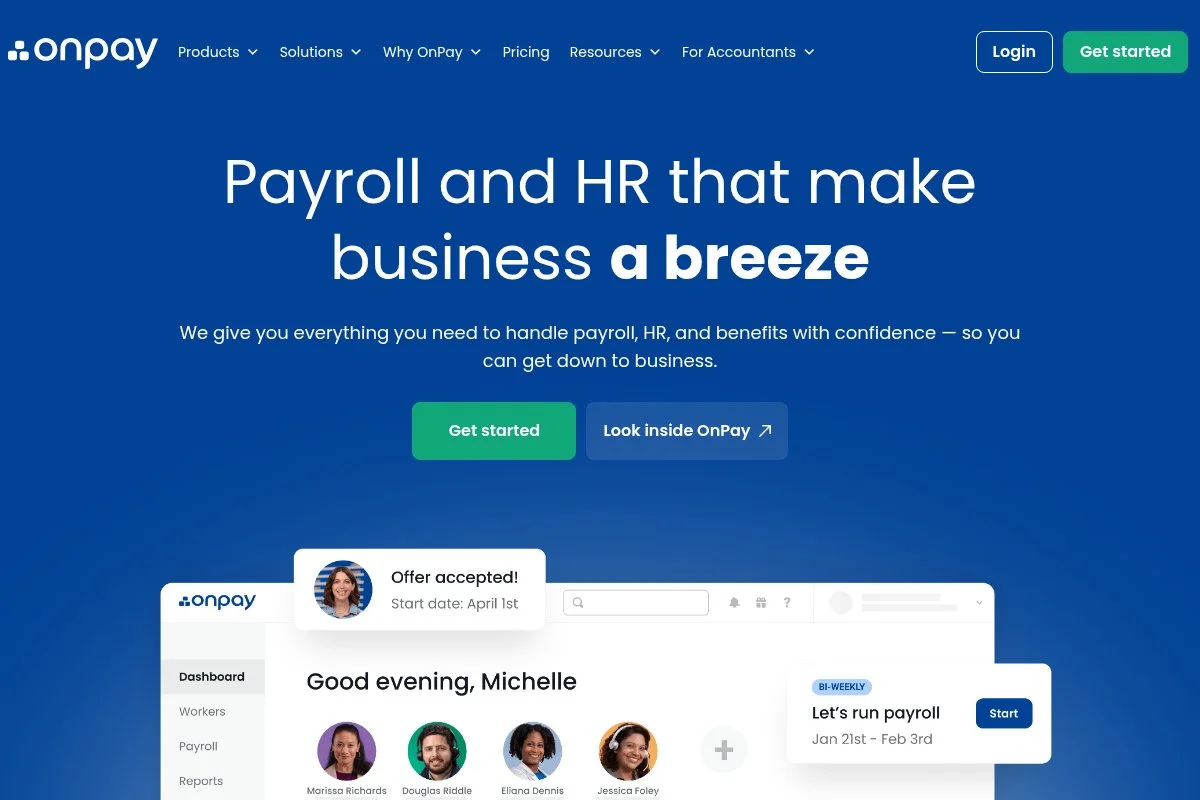
OnPay is a full‑service payroll platform designed for small businesses that want clear pricing and strong state tax coverage. It’s been around for years and is well regarded by accountants and owners for accuracy and support.
You start with a single plan with transparent pricing. Set up walks you through company info, tax IDs, and worker types. The main dashboard focuses on running payroll, managing benefits, and viewing taxes due. Daily actions are straightforward, even if this is your first payroll tool.
Recent updates improved benefits administration and document collection, plus tighter integrations with QuickBooks Online and Xero. That means cleaner books and less monthly reconciliation. Premium capabilities include multi‑state payroll, automated filings, garnishments, PTO accruals, and built‑in HR tools like onboarding and org documents. These features are typically add‑ons elsewhere.
I don’t run my current payroll on OnPay, but a peer agency owner raves about its accuracy during quarterlies. That’s the moment many cheaper tools stumble. I also appreciate OnPay’s guides for state compliance. They’re practical, up to date, and linked directly from the app.
How OnPay Works and Key Features
OnPay uses a clear, guided workflow. The interface is minimal and friendly, with quick access to pay runs, employees, and taxes. You can customize earnings types, deductions, and PTO policies. Templates help with recurring items. Advanced users can map accounting integrations, add benefits, and configure multi‑state payroll. Reporting covers payroll summaries, tax payments, benefit contributions, and general ledger mapping.
Automation handles filings, payments, and year‑end forms. There’s employee self‑service for pay stubs and documents. Support is responsive via chat and email, with helpful onboarding checklists. One marketing consultant told me, “OnPay made my first W‑2 hire painless. The tax part just worked.”
Overall, OnPay balances beginner ease with features that can grow with you.
Who Is OnPay For?
Best for solo owners planning a first W‑2 hire, small agencies, clinics, restaurants, and trades. It excels where multi‑state or benefits are in play. If you only pay contractors and want rock‑bottom cost, Square may be cheaper. No special technical skill needed.
OnPay Pricing
OnPay keeps pricing simple with one plan and a per‑person fee that covers filings and year‑end forms.
- OnPay: $40/month base + $6/month per person, includes full‑service payroll, automated tax filings and payments, multi‑state support, and year‑end W‑2/1099
Compared with Gusto and QuickBooks Payroll, OnPay’s plan is straightforward and often cheaper once you add people. Monthly billing is standard; seasonal pauses are possible if your business is cyclical.
OnPay Pros and Cons
Pros
- Transparent single plan with strong feature coverage
- Accurate filings and reliable multi‑state support
- Solid integrations with QuickBooks and Xero
- Great value as your team grows
Cons
- No ultra‑cheap contractor‑only option
- Interface is practical, not flashy
Owners who want “set it and forget it” payroll will be happy here. If you pay only a few contractors, Square’s pricing may be a better fit.
OnPay Reviews
G2: 4.8/5 rating (hundreds of reviews). Capterra: 4.8/5 rating (hundreds of reviews). Reviewers praise support and accuracy.
3. Patriot Payroll
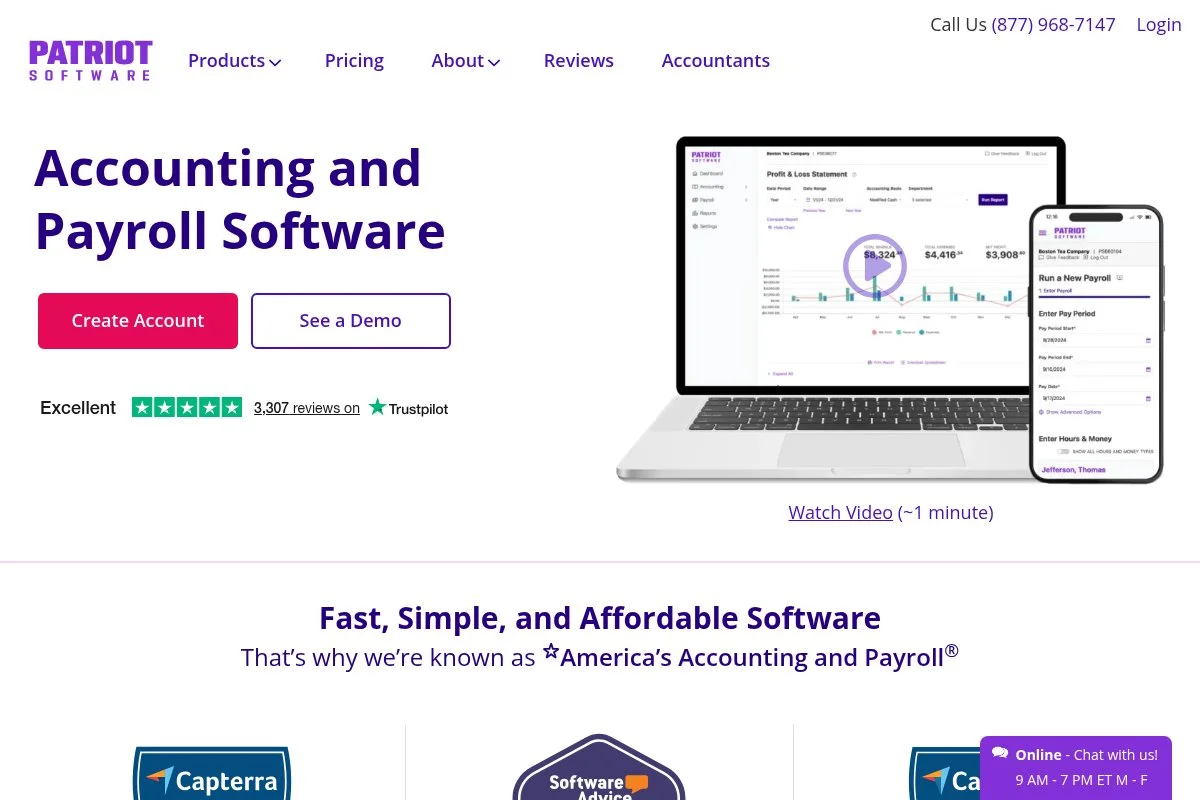
Patriot Payroll focuses on affordability and simplicity for very small businesses. The company has served small employers for years and is known for budget‑friendly pricing and clear workflows.
Setup is guided and quick. You choose Basic (you file taxes) or Full Service (Patriot files for you). The dashboard highlights payroll runs, workers, and reports. Daily use is straightforward, especially if you’re moving from spreadsheets.
Patriot has continued to polish the reports and time-import options. Integrations with accounting tools are available, and you can export data cleanly for your bookkeeper.
Full Service adds automated tax filings, local tax support in many areas, and year‑end forms. These are features worth the upgrade if you don’t want to handle filings manually.
I recommend Patriot to owners who want the lowest base price without losing core features. It’s a sweet spot for one to three workers.
Support is friendly, and their help docs are written in plain English—helpful if payroll jargon makes your eyes glaze over.
How Patriot Payroll Works and Key Features
Patriot’s interface is clean and basic. You set up workers, pay rates, and deductions, then run payroll from a simple grid. Templates handle recurring items like reimbursements and benefits.
Customization includes earning types and deductions. Advanced users can map general ledger accounts and export detailed reports. Reporting covers payroll summaries, tax liabilities, and year‑end forms.
Automation depends on your plan. Full Service handles filings and payments. Employee self‑service offers pay stubs and tax forms. Support is available by chat and phone during business hours.
Overall, Patriot is easy for beginners while still giving owners control who like to see every line item.
Who Is Patriot Payroll For?
Ideal for solo owners paying themselves, freelancers with one assistant, local shops, and trades with a tiny team. It shines if you want the lowest monthly price. If you need deeper HR or multi‑state complexity, OnPay or Gusto may suit you better. No technical skill required.
Patriot Payroll Pricing
Patriot uses a base-plus-per-employee model, with a choice between self‑filing and full‑service tax filing.
- Basic: $17/month base + $4/month per employee or contractor; you handle tax filings
- Full Service: $37/month base + $4/month per employee or contractor; Patriot handles filings and year‑end forms
This is one of the lowest entry points on the market. Compared with Gusto and QuickBooks Payroll, Patriot can save meaningful money for very small teams. Monthly billing is standard; discounts may apply with annual commitments from time to time.
Patriot Payroll Pros and Cons
Pros
- Lowest base pricing among full‑service options
- Clear, simple interface for first‑time payroll
- Flexible choice to self‑file or have filings handled
Cons
- Fewer HR features than Gusto or OnPay
- Interface is utilitarian
- Some local taxes require extra setup
If price is your top concern and your team is tiny, Patriot is hard to beat. If you expect fast growth or need rich HR, look at OnPay or Gusto.
Patriot Payroll Reviews
Capterra: 4.8/5 rating (thousands of reviews across Patriot products). G2: strong ratings, with praise for value. Review counts vary by site.
4. Gusto
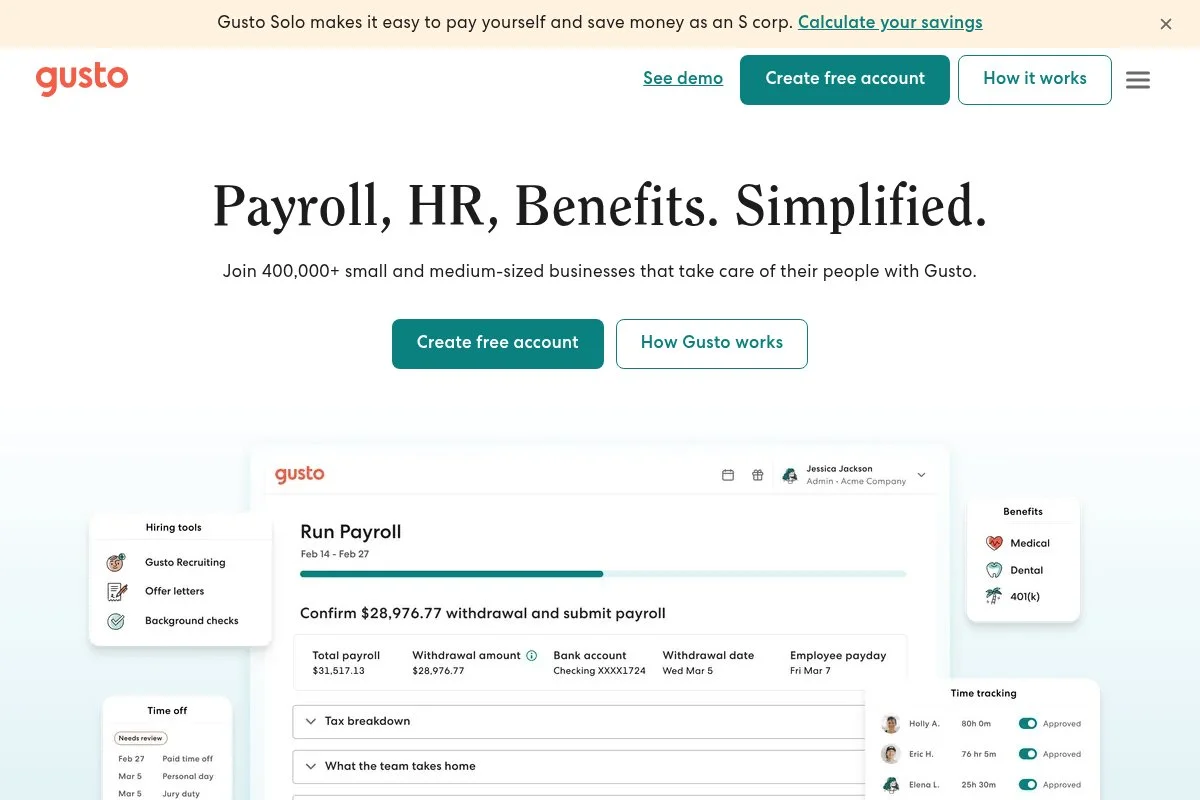
Gusto is an all‑in‑one payroll and HR platform for small businesses seeking a polished experience. It’s one of the most recognized names among accountants and startups for ease of use.
Starting on Gusto’s Simple plan is straightforward. The interface feels modern, with clear steps for company setup, workers, and taxes. Day to day, you’ll run payroll, manage benefits, and view reports from an intuitive dashboard.
Recent updates have focused on compliance helpers, better onboarding checklists, and expanded integrations. Those improvements make hiring your first employee less stressful. Higher tiers add more HR tools, performance features, and advanced support. Gusto also offers a contractor‑only option for 1099 payouts, which can be a clean bridge before hiring W‑2 employees.
I like Gusto’s balance of design and depth. Whenever I help an owner who’s nervous about payroll, Gusto is an easy recommendation. Customer education is strong. Their help articles and state guides are among the clearest I’ve used.
How Gusto Works and Key Features
Gusto’s interface is clean and guided. You can customize pay schedules, earnings types, and deductions. Templates help repeat common items like stipends and reimbursements.
Advanced users can connect accounting tools, benefits, and time tracking. Reporting covers payroll registers, tax summaries, and general ledger exports. Automation handles filings, payments, and year‑end W‑2/1099 forms. Gusto offers onboarding checklists, document e‑sign, and employee self‑service for pay stubs and tax forms. Support is available through articles, chat, and email.
The overall feel is beginner-friendly while still powerful enough for small teams with light HR needs.
Who Is Gusto For?
Perfect for solo owners who want an easy-to-use interface, startups hiring their first W-2S, agencies, and remote teams. It excels when you need payroll, basic HR, and onboarding. If you only need the cheapest contractor payouts, Square may cost less. No technical skills needed.
Gusto Pricing
Gusto uses tiered pricing with a base fee plus a per‑person charge. There is also a contractor‑only option.
- Simple: $40/month base + $6/month per employee; full‑service payroll with filings
- Plus: higher base + per‑employee fee; adds more HR tools and support
- Contractor Only: per‑contractor monthly pricing; includes 1099‑NEC e‑delivery and direct deposit
Pricing is competitive with peers. It’s not the cheapest, but the experience and features justify it for many. Monthly billing is standard; occasional promos appear on Gusto’s site.
Gusto Pros and Cons
Pros
- Excellent user experience and onboarding
- Reliable filings and year‑end forms
- Solid HR features at higher tiers
Cons
- Base pricing can be higher than Patriot’s
- Advanced HR may be more than a solo owner needs
Choose Gusto if you want a polished, friendly tool with room to grow. If the budget is tight and you’re very small, Patriot could save money.
Gusto Reviews
G2: 4.4–4.6/5 rating (thousands of reviews). Capterra: strong ratings with praise for ease of use. Counts vary by site and plan tier.
5. QuickBooks Payroll

QuickBooks Payroll is Intuit’s payroll add‑on for QuickBooks Online. It’s designed for owners who want tight bookkeeping integration and a single vendor for finance operations.
Setup is guided inside QuickBooks Online. You’ll enter company details, tax IDs, and worker info, then run payroll from a familiar left‑nav menu. Day-to-day, payroll entries sync with your books automatically, reducing reconciliation time.
Recent improvements strengthened same‑day or next‑day direct deposit options and added more help for state registrations. Tighter sync with QuickBooks reports has also reduced the need for manual journal entries. Higher plans include expert review, time tracking integrations, and more help with setup and support. This is helpful if you prefer white‑glove guidance.
Note: QuickBooks Payroll ties to QuickBooks Online, not QuickBooks Self‑Employed. If you use QBSE, you’d need to upgrade to QBO for payroll.
Support materials are deep due to QuickBooks’ large user base, and many accountants are fluent in this stack.
How QuickBooks Payroll Works and Key Features
QuickBooks Payroll is built into the QBO interface. You run payroll from a clear wizard, customize earnings and deductions, and map accounts. Templates speed up recurring items.
Advanced users can connect time tracking, benefits, and third‑party apps. Reporting includes payroll summaries, tax liabilities, and journal detail. Automation covers filings, payments, and year‑end forms on supported tiers.
Support is available via help articles, community forums, chat, and phone. Many pros describe the biggest win as clean books without manual entry. Overall, QuickBooks Payroll is best if your bookkeeping already runs on QBO and you value native sync.
Who Is QuickBooks Payroll For?
Best for self‑employed owners already on QuickBooks Online, small retail shops, service pros, and consultants who want integrated books. If you’re only paying contractors or want the cheapest start, Square or Patriot may cost less. Beginner‑friendly if you know QBO.
QuickBooks Payroll Pricing
QuickBooks Payroll follows tiered pricing with a base fee plus a per‑employee charge. Filings are included on supported plans.
- Core: $45/month base + $5/month per employee; full‑service payroll with filings
- Premium: higher base + per‑employee fee; adds more tools and support
- Elite: highest tier; adds expert setup and extra protections
Compared with Gusto and OnPay, Core is competitive if you already pay for QuickBooks Online and want the integration. Watch for bundle promos. Monthly billing; savings may appear with limited‑time offers.
QuickBooks Payroll Pros and Cons
Pros
- Deep QuickBooks Online integration
- Clean accounting sync reduces bookkeeping time
- Widely supported by accountants
Cons
- Requires QuickBooks Online (not QB Self‑Employed)
- Contractor‑only setups can be cheaper with Square
- Interface assumes comfort with QBO
If your books are in QBO, this is a practical pick. If not, the integration benefits won’t matter, and other tools may be cheaper.
QuickBooks Payroll Reviews
G2: around 4.0–4.3/5 rating (thousands of reviews across versions). Capterra: solid scores with praise for QBO sync. Ratings vary by plan.
6. Wave Payroll
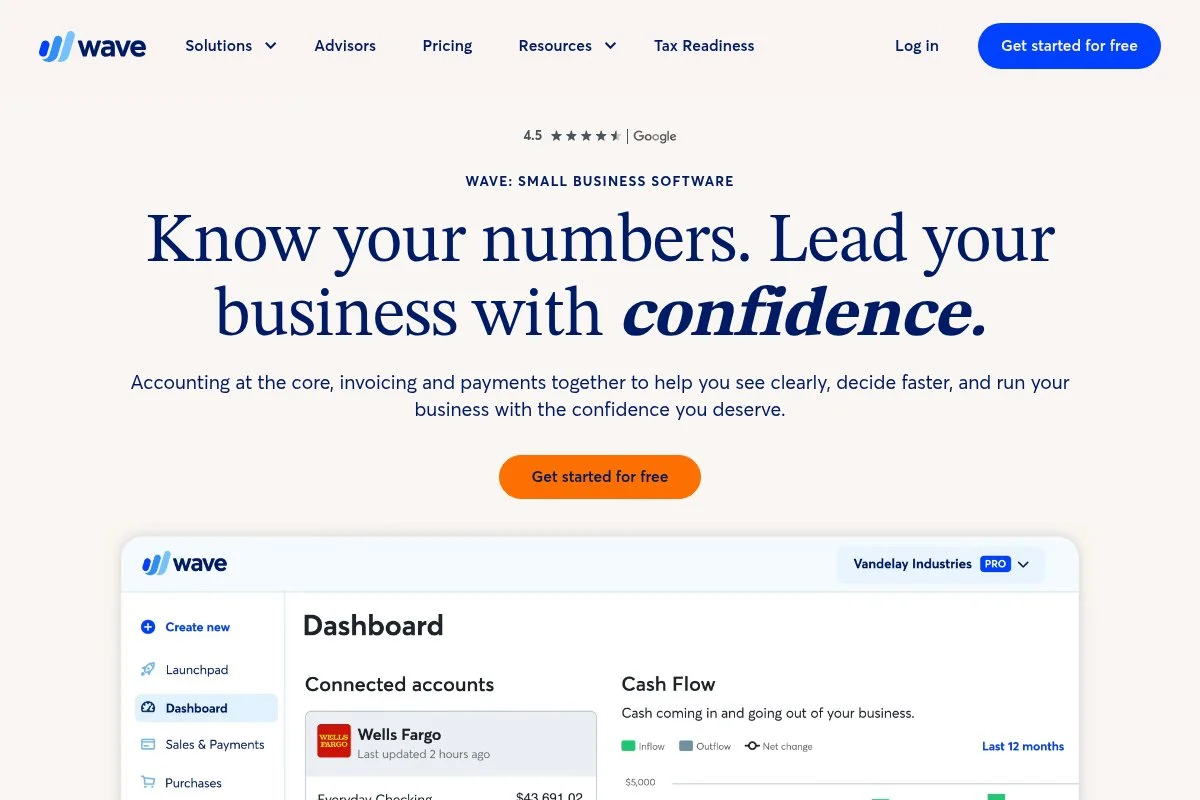
Wave Payroll is part of the Wave suite, known for free invoicing and accounting. It targets very small businesses that want basic payroll tied to simple books.
Setup is quick, especially if you already use Wave Accounting. The interface is straightforward: add workers, set pay, run payroll, and view taxes. It’s easy for your first few runs. Wave continues to improve links between invoicing, payments, and payroll. That’s helpful if you want a lightweight all‑in‑one stack without switching tools.
Where supported, Wave handles tax filings and payments. In some states, you’ll run self‑service payroll and handle filings yourself. Check your state before committing. I like Wave as a starter if you already live in Wave Accounting. Just confirm your state’s service level so there are no surprises at quarter‑end.
Support is primarily help docs and chat, with community resources for common questions.
How Wave Payroll Works and Key Features
Wave keeps things simple. You run payroll from a guided flow, customize earnings and deductions, and download reports. Templates save time for recurring items like reimbursements.
Advanced users can export data for accounting or tax prep. Reports include payroll summaries, tax liabilities, and year‑end forms. Automation depends on your state: full‑service includes filings, and self‑service requires you to file. Wave integrates seamlessly with Wave Accounting and invoicing, keeping your back office organized. Support includes articles and chat for plan holders.
Overall, Wave is beginner‑friendly and best for owners already using Wave tools.
Who Is Wave Payroll For?
Best for solo owners and very small teams using Wave Accounting, freelancers with one assistant, and cost‑conscious shops. Great if your state supports full‑service filings. If you need richer HR or guaranteed filings across the board, Gusto or OnPay will be a better fit. No technical skills needed.
Wave Payroll Pricing
Wave’s pricing varies by state service level, with a base fee and per‑employee charge.
- Self‑Service States: $20/month base + $6/month per employee or contractor; you file taxes
- Tax Service States: $35/month base + $6/month per employee or contractor; Wave files taxes and handles year‑end forms
If you already use Wave Accounting, this is a straightforward add‑on. For contractor‑only needs, Square can be cheaper. Pricing is monthly; check your state’s status on Wave’s site.
Wave Payroll Pros and Cons
Pros
- Simple and affordable entry point
- Tight integration with Wave Accounting
- Clear reports for small teams
Cons
- Service level depends on your state
- Limited HR features compared with Gusto
- Fewer integrations than larger players
Choose Wave if you already rely on Wave’s free tools and your state supports tax service. Otherwise, compare OnPay or Patriot.
Wave Payroll Reviews
Capterra: around 4.0–4.5/5 rating (hundreds of reviews across Wave products). G2: similar range. Reviews vary due to differences in state services.
What Is the Best Payroll Software Right Now?
If I had to pick today, my top three are Square Payroll, OnPay, and Patriot Payroll. Each serves a slightly different self‑employed path: contractors first, simple full‑service, or lowest monthly cost.
Square Payroll is my number one. I use it for contractor payouts and short projects. This is not sponsored, just my honest experience. I first tried it after seeing how fast a cafe owner onboarded their team. The setup was quick, deposits hit on schedule, and 1099s at year‑end were painless. The contractor’s plan’s pricing sealed it for me.
In terms of value, Square’s contractor plan scales well. Paying five contractors runs lean, and I only add a base fee if I hire W‑2. Many tools force a base fee on day one. Not here. When every dollar matters, that pricing structure helps.
OnPay is my close second. If you know you’ll hire employees or need multi‑state and benefits, OnPay’s single plan covers a lot for the money. Their filings are reliable, and integrations with QuickBooks and Xero keep books tidy. Recent improvements in onboarding make first hires feel manageable rather than stressful.
What draws me to OnPay, beyond its accuracy, is the balance of features at a single price. No maze of add‑ons. If I were starting a small agency and planned two W‑2 hires this year, I’d likely choose OnPay. Patriot Payroll is my third pick for owners who want the absolute lowest base price. If you’re paying yourself and maybe one assistant, Patriot’s Full Service plan is a budget win. You can always switch later if you outgrow it.
I use more than one tool in real life. Square handles contractors for short gigs, while other clients I advise use OnPay or Gusto. Different setups, different needs. Choosing between Square and OnPay is genuinely hard. I stick with Square for contractor simplicity and price. If I were hiring W‑2s this quarter, I’d go with OnPay for its filings and benefits support.
I hope this helped you find your fit. Pay people on time, keep taxes clean, and get back to your real work. You’ve got this.
Frequently Asked Questions
Q: What’s the cheapest way to pay only 1099 contractors?
I usually start owners on Square Payroll’s contractor plan. You pay a low per‑contractor fee, get direct deposit, and 1099‑NEC e‑delivery at year‑end. It’s simple and affordable.
Q: Do I need payroll if I’m the only employee in my LLC?
If you’re taxed as an S‑Corp, you typically need to run “reasonable compensation” through payroll. If you’re a sole proprietor, you don’t run payroll for yourself. Ask your tax pro.
Q: Which payroll works best with QuickBooks?
QuickBooks Payroll integrates natively with QuickBooks Online. If you’re on QBO, that’s the easiest sync. If not, OnPay and Gusto also export cleanly to QBO and Xero.
Q: How fast can I run my first payroll?
If your tax IDs are ready, you can often run payroll in a day. Square and OnPay guide setup step by step. The slowest part is state account approvals, not the software.
Photo by Towfiqu barbhuiya; Unsplash


